HD Mobile Streaming: 11 Best Practices for 2026
Table of Contents
- Why Mobile Streaming Quality Still Fails in 2026
- The Core Settings for HD Mobile Streaming
- How to Prevent Buffering in Live Streams
- Your Mobile Live Streaming Equipment Checklist
- Managing Network Stability and Uplink Speed
- Common Mobile Streaming Mistakes to Avoid
- Final Thoughts on Mobile Streaming Best Practices
- Frequently Asked Questions
Last Updated: September 7, 2026
Why Mobile Streaming Quality Still Fails in 2026
Video quality on mobile live streams remains inconsistent because most broadcasters treat a smartphone like a studio camera. A phone is a compact computer with a variable network connection, and the technical settings that produce crisp HD on a wired desktop feed will stutter or pixelate on a mobile device. High definition mobile streaming best practices start with understanding that the device, the encoder, and the network must all work together.
Our production teams have managed streams across metro and regional locations for corporate AGMs, product launches, and government briefings. The most common failure we see is not equipment-related. It is a mismatch between upload throughput and the bitrate the encoder is pushing. When a stream drops frames or buffers, the root cause is almost always a configuration that ignores the reality of cellular connectivity.
The good news is that reliable HD mobile streaming is achievable with the right settings and a disciplined approach to network management. Below, we will walk through the exact bitrates, resolutions, and fail-safes that separate a professional broadcast from a pixelated mess.
The Core Settings for HD Mobile Streaming
Configuring your encoder correctly is the difference between a stream that holds up and one that degrades under load. Mobile streaming relies on adaptive bitrate streaming, which lets the encoder adjust quality in real time based on available bandwidth. Without it, a single drop in uplink speed forces the player to buffer or drop the connection entirely.
The three settings that matter most are bitrate, resolution, and frame rate. Each one directly affects how much data your device pushes per second. Setting them too high for your connection causes packet loss and jitter. Setting them too low produces soft, blocky video that looks dated on modern screens.
The Best Bitrate for 1080p Mobile Streaming
The best bitrate for 1080p mobile streaming sits between 4,500 and 6,000 kbps when using H.264 encoding. This range delivers sharp detail for talking heads, presentations, and most corporate content without overwhelming a typical 4G or 5G uplink. If you are streaming fast motion like a product demo with movement, push toward the upper end. For static scenes such as a panel discussion, the lower end is sufficient and safer.
Always pair your bitrate with a network test. Run a speed test on the same connection you will use for the broadcast, then set your encoder to roughly half of your measured uplink speed. This headroom accounts for network congestion and keeps your stream stable when other devices share the connection.
Resolution, Frame Rate, and Codec Choices
For most mobile broadcasts, 1080p at 30 frames per second is the sweet spot. It balances visual fidelity with the processing load on your phone and the bandwidth demands on your network. A 60 fps stream looks smoother but requires significantly more bitrate to avoid compression artefacts, and the gain is rarely visible on a phone screen.
Codec choice also shapes quality. H.264 remains the most compatible option across devices and platforms. HEVC, also known as H.265, delivers better compression at the same quality, but it demands more processing power for live encoding and can cause playback issues on older devices. Stick with H.264 unless you are certain your audience uses recent hardware.
Set your encoder to output a 16:9 aspect ratio at 1080p. Vertical streams waste bitrate on empty space and look unprofessional on desktop players, where most corporate viewers still watch.
How to Prevent Buffering in Live Streams
Buffering happens when the player receives data slower than it plays video. The fix is not a faster connection. It is a configuration that adapts to the connection you actually have.
Adaptive bitrate streaming is the single most effective tool for preventing buffering. It creates multiple renditions of your stream at different quality levels, and the player switches between them based on real-time network conditions. When a viewer’s connection dips, the player drops to a lower rendition instead of pausing to buffer.
Implement this correctly by using a platform or encoder that supports multi-bitrate output. Most professional streaming services offer this natively. If you are broadcasting directly from a phone app, check that it enables adaptive streaming rather than forcing a single fixed bitrate.
Your own connection matters equally. Use a wired ethernet adapter for your phone where possible, or position yourself near a window with a clear line of sight to a cell tower. Network congestion causes more buffering than any other single factor.
Never rely on public WiFi for a live broadcast. Shared networks introduce unpredictable jitter and packet loss, and you have no control over other users consuming bandwidth mid-stream.
Your Mobile Live Streaming Equipment Checklist
A mobile live streaming equipment checklist keeps your setup organised and prevents last-minute failures. You do not need a full production truck, but you do need the right basics.
- Smartphone with hardware acceleration and a recent processor
- Tripod or sturdy mount to eliminate camera shake
- External microphone for clear audio
- Wired ethernet adapter or a dedicated 4G/5G router
- Portable power bank for extended broadcasts
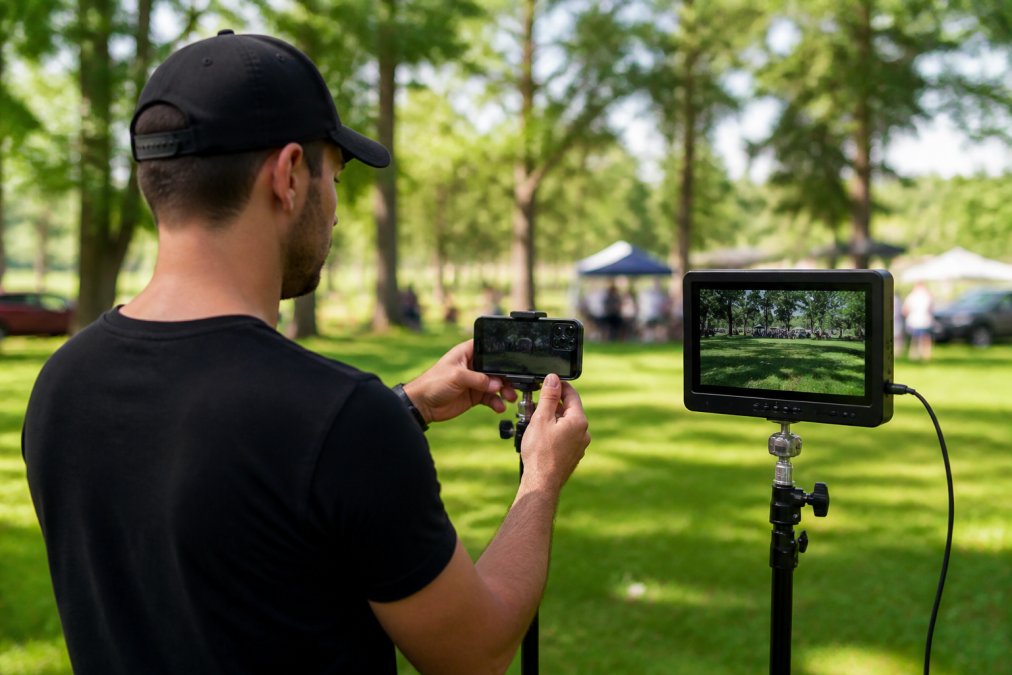
- Field monitor or second device to preview the stream
Audio is the most overlooked element. Viewers tolerate average video far more than poor sound, so invest in a decent external mic rather than relying on the phone’s built-in microphone. A lavalier mic works well for a single presenter, while a shotgun mic suits interviews or panel formats.
Test every piece of equipment before the event. Connect the microphone, verify the tripod holds your phone securely, and confirm the power bank charges faster than the stream drains the battery. A full rehearsal on the actual network catches problems before your audience sees them.
Managing Network Stability and Uplink Speed
Uplink speed is the single most important variable in mobile streaming quality. Download speed is irrelevant for broadcasting, you are sending data, not receiving it. The challenge is that cellular uplink is inherently variable, affected by signal strength, network congestion, and even weather conditions.
Understanding Real-World Uplink Performance
Advertised 4G and 5G speeds rarely reflect real-world conditions. A typical 4G connection might claim 50 Mbps downlink, but the actual uplink available at a venue can be as low as 3-5 Mbps during peak hours (speedtest.net). 5G improves this significantly, with real-world uplink speeds of 15-50 Mbps in urban areas, but coverage is inconsistent and drops off rapidly indoors or in regional locations.
A common pattern among professional broadcasters is to test uplink speed at the venue at the same time of day as the event, then again 30 minutes before going live. Network congestion follows predictable daily patterns, lunchtime and early evening are typically the worst. If your measured uplink is below 6 Mbps, drop your target resolution to 720p rather than risking constant buffering at 1080p.
The 50% Headroom Rule
A widely used heuristic in the streaming industry is to set your encoder bitrate to no more than 50% of your measured uplink speed (obsproject.com). This headroom accounts for the natural fluctuation in cellular throughput and prevents the encoder from saturating the connection, which causes packet loss and jitter. For example, if your speed test shows 10 Mbps uplink, set your maximum bitrate to 5,000 kbps. This rule is conservative but reliable.
5G Network Slicing and Dedicated Connectivity
One of the most significant developments in mobile streaming is 5G network slicing, which allows carriers to partition their network to guarantee specific performance characteristics. A network slice can reserve a dedicated portion of bandwidth with guaranteed latency and jitter parameters, effectively providing a private lane for your stream. mobile-friendly websites.
As of 2026, network slicing is not yet available as a consumer product, but it is becoming accessible through enterprise agreements and specialised SIM cards from carriers. If your event has critical streaming requirements, it is worth asking your carrier whether a dedicated slice or priority data plan is available.
Bonding: The Professional Fail-Safe
For broadcasts where a dropped stream is unacceptable, shareholder meetings, regulatory announcements, major product launches, a bonding solution is the industry standard. Bonding devices from manufacturers like LiveU, Teradek, and Peplink combine multiple network connections (two 4G/5G SIMs, a wired ethernet connection, and sometimes WiFi) into a single virtual uplink (liveu.tv).
The mechanism works by splitting your video data across all available connections and reassembling it at the receiving end. If one connection fails or degrades, the others continue carrying the stream without interruption. This redundancy is the difference between a stream that survives a network outage and one that goes dark.
Bonding devices range from portable units to rack-mounted enterprise solutions. For organisations that stream regularly, the cost is justified by the elimination of network-related failures.
Monitoring Stream Health in Real Time
Passive monitoring is not enough. Professional streamers actively watch three metrics during a broadcast:
- Uplink throughput: The actual data rate your encoder is achieving. If it drops below your configured bitrate, the encoder is struggling.
- Frame drops: The percentage of frames the encoder failed to send. Any sustained frame drops above 1% indicate a problem.
- Latency: The round-trip time between your encoder and the streaming platform’s ingest server. Rising latency often precedes packet loss.
Most professional encoding apps display these metrics on screen. If you see frame drops, reduce your bitrate immediately rather than hoping the network recovers. Persistent frame drops indicate a deeper problem that will only worsen as the event progresses.
Never rely on public WiFi for a live broadcast. Shared networks introduce unpredictable jitter and packet loss, and you have no control over other users consuming bandwidth mid-stream. A dedicated 4G/5G router with a data-only SIM is a safer option.
Positioning for Optimal Signal
Cellular signal strength is affected by building materials, distance from the cell tower, and even the orientation of your device. A phone held in your hand will perform worse than one mounted on a tripod near a window. For critical broadcasts, position your setup outdoors or adjacent to a window with a clear line of sight to the nearest tower.
Some professional broadcasters use external antennas or signal boosters to improve reception in challenging environments. These devices amplify the cellular signal before it reaches your phone or router, which can stabilise uplink speeds in regional or indoor locations.
A Practical Network Checklist
Before going live, run through this checklist:
- Test uplink speed at the venue at the same time of day as the event
- Set encoder bitrate to no more than 50% of measured uplink
- Confirm you have a backup connection (second SIM, bonding device, or wired ethernet)
- Position equipment near a window or outdoors for optimal signal
- Monitor uplink throughput and frame drops continuously during the broadcast
- Have a plan to reduce bitrate mid-stream if network conditions deteriorate
Common Mobile Streaming Mistakes to Avoid
The most frequent mistake observed is broadcasting without a backup plan. Even with perfect settings, networks fail. Professional productions always have a fail-safe, whether that is a second network connection, a backup encoder, or a platform with automatic redundancy.
Another common error is ignoring the platform’s recommended settings. Each streaming service has specific ingest requirements for bitrate, resolution, and codec. Broadcasting with settings that conflict with the platform forces unnecessary transcoding, which degrades quality and adds latency.
Frame drops are a warning sign, not a condition to ignore. If your encoder reports dropped frames, reduce your bitrate immediately rather than hoping the network recovers. Persistent frame drops indicate a deeper problem that will only worsen as the event progresses.
Finally, do not neglect the viewing experience. Test your stream on an actual mobile device before going live. What looks excellent on a desktop monitor can appear soft or cropped on a phone, particularly if your aspect ratio or safe margins are incorrect.
Final Thoughts on Mobile Streaming Best Practices
High definition mobile streaming best practices come down to preparation and adaptability. Set your bitrate realistically for your uplink, enable adaptive bitrate streaming, and test everything on the actual network before your audience tunes in. These steps prevent the vast majority of buffering and quality failures.
For organisations that cannot afford a failed broadcast, professional management removes the risk entirely. Webcasting Livestream provides end-to-end live streaming solutions with fail-safe procedures designed to guarantee streams do not drop, regardless of location or network conditions. Our team handles the technical configuration, network bonding, and multi-camera production so your internal team can focus on content, not connectivity.
Every stream is recorded and delivered to you at no extra cost, and the content belongs to your organisation for future training or compliance use. HD quality is delivered consistently across all devices, from desktop browsers to mobile phones.
When your next event demands flawless delivery, get a quote from Webcasting Livestream and let our engineers manage the variables that compromise mobile streaming quality.
Frequently Asked Questions
What is the best bitrate for 1080p mobile streaming?
For a stable 1080p stream at 30 frames per second, use a bitrate between 4,500 and 6,000 Kbps. If you are streaming at 60 fps, increase that to 6,000 to 9,000 Kbps. This range balances high visual quality with the upload bandwidth available on most 4G and 5G connections. If your network is unstable, lower the bitrate to avoid frame drops and buffering.
Should I stream in 720p or 1080p for mobile audiences?
For a mix of viewers on phones and desktops, 1080p is the safer choice when your upload speed exceeds 5 Mbps. However, if your connection is patchy or you are broadcasting from a moving vehicle, 720p at 30 fps with a 3,000 to 4,000 Kbps bitrate offers a more stable picture. Adaptive bitrate streaming solves this by letting the platform adjust quality per viewer.
How does network bandwidth affect mobile streaming quality?
Your upload speed determines the maximum bitrate you can send. For a 1080p stream, you need at least 5 Mbps of dedicated upload throughput, but 10 Mbps is safer for 60 fps. High latency, jitter, and packet loss on a congested network cause buffering even when your speed test looks fine. Use a wired connection or a bonded cellular modem for critical events.
What equipment do I need for professional mobile live streaming?
Your mobile live streaming equipment checklist should include a recent flagship phone with hardware encoding, a tripod or gimbal for stability, an external microphone, and a lighting source. For network reliability, add a USB-C ethernet adapter or a dedicated 5G hotspot. A battery pack and a phone mount with cold-shoe adapters complete the kit for lengthy broadcasts.