Live Streaming Bandwidth for Online Classes: What You Need

Last Updated: November 16, 2026
Quick Summary
Live streaming bandwidth for online classes is mainly determined by upload speed, not download speed. A 1080p stream typically needs about 4 to 6 Mbps of upload, and you should add a 50 per cent buffer for other traffic on the connection.
- Upload speed decides stream quality, and many plans advertise download speed instead.
- A 720p stream needs roughly 2.5 to 4 Mbps of upload.
- A 1080p stream needs roughly 4 to 6 Mbps of upload.
- Add 50 per cent to the stream figure as a safety buffer for other traffic.
- Test upload speed at the time of day you plan to stream, not just once.
Table of Contents
- How Much Bandwidth Does an Online Class Stream Actually Need?
- Upload Speed for Live Streaming: Why It Matters More Than Download
- Live Streaming Bitrate Guide: Matching Resolution and Frame Rate to Your Connection
- Planning Bandwidth for Whole Classes: Per-User Calculations and Simultaneous Demand
- Internet Speed Test for Live Streaming: A Step-by-Step Check
- How to Reduce Buffering During Live Streaming
- Booking a Reliable Stream for Your Next Online Class
- Frequently Asked Questions
If your online class freezes halfway through a lesson, the problem is often not your laptop or your camera. It is usually the upload speed going out of your connection. For most classes, live streaming bandwidth requirements for online classes depend far more on how much data you send out than on how fast your internet feels when you browse. In live streaming generally, the failure point is often the upload stage rather than the download stage.
Most internet plans in Australia are advertised by download speed, which is why people assume a 100 Mbps plan can handle anything. It often cannot. Your upload speed is the figure that decides whether your students see a clear picture. Here is what you need to know before you plan your next session.
How Much Bandwidth Does an Online Class Stream Actually Need?
A single HD stream needs a steady upload speed, and the exact figure depends on the video quality you choose. A common planning approach is to allow for the stream itself plus a safety margin for everything else using the connection at the same time.
A 1080p stream at around 4 to 6 Mbps of upload is a common planning range for a small class. Some lessons need more, so check the settings in your streaming software before you go live.
- Standard definition (480p): roughly 1 to 2 Mbps upload
- HD (720p): roughly 2.5 to 4 Mbps upload
- Full HD (1080p): roughly 4 to 6 Mbps upload
- Add 50 per cent on top of the stream figure as a safety buffer
A common mistake is planning for the stream alone. Video calls, cloud files, and other people in the house all use upload capacity too.
Upload Speed for Live Streaming: Why It Matters More Than Download
Upload speed is the amount of data your connection sends out. Download speed is what it brings in. Live streaming is almost entirely an upload job, because your camera and screen are sending video to viewers.
This is why a fast download connection can still fail. Many home and school connections in Australia are asymmetric, meaning the upload is much slower than the download. A plan advertised at high download speeds may only offer a fraction of that for upload.
Check your upload figure directly. Do not rely on the headline number on your plan. Use a speed test and look at the upload result specifically. If it is below your planned stream rate with a buffer, the stream will struggle.
Live Streaming Bitrate Guide: Matching Resolution and Frame Rate to Your Connection
Bitrate is the amount of data your stream sends each second, and it is the setting that most directly decides whether your upload can keep up.
- 480p at 30 frames per second: roughly 1 to 2 Mbps
- 720p at 30 frames per second: roughly 2.5 to 4 Mbps
- 1080p at 30 frames per second: roughly 4 to 6 Mbps
- 1080p at 60 frames per second: roughly 6 to 9 Mbps
- 1440p at 30 frames per second: roughly 9 to 13 Mbps
- 2160p (4K) at 30 frames per second: roughly 20 to 35 Mbps
Frame rate matters as much as resolution for teaching. A 30 frames per second stream is fine for a talking-head lesson, a slide deck, or a screen share of a document.
Screen sharing deserves its own note. A shared slide deck or document is mostly static, so it compresses efficiently and often needs less bitrate than a camera feed at the same resolution. A shared video clip or animation behaves like normal video and needs the full figure.
Set a constant bitrate in your streaming software so quality stays steady rather than spiking and dipping. Keeping the bitrate within your upload capacity also matters when adapting a stream for other low-bandwidth settings, where Centra Health offers a useful point of comparison for thinking about reliable video over limited connections.
Class format should drive the setting more than raw quality ambition. A lecture broadcast to a large view-only audience can run at a higher resolution because there is no return video competing for upload.
The table below sets out the general bitrate planning ranges for each resolution and frame rate combination.
| Resolution and frame rate | Planning bitrate (upload) | Best use |
|---|---|---|
| 480p at 30 fps | 1 to 2 Mbps | Basic lessons, low upload |
| 720p at 30 fps | 2.5 to 4 Mbps | Talking heads, slide decks |
| 1080p at 30 fps | 4 to 6 Mbps | Standard full HD lessons |
| 1080p at 60 fps | 6 to 9 Mbps | Fast motion demonstrations |
| 1440p at 30 fps | 9 to 13 Mbps | Detailed screen sharing |
| 2160p (4K) at 30 fps | 20 to 35 Mbps | Highest quality, strong uploads only |
Planning bitrate (upload)
Planning Bandwidth for Whole Classes: Per-User Calculations and Simultaneous Demand
A live class has two bandwidth demands running at once, and most planning advice only counts one of them. Your outgoing stream is the upload side. Students sending their own video and audio back to you, plus the download of their feeds arriving at your machine, is the other.
The per-user figures below are general planning estimates. They are not platform guarantees, and the exact numbers depend on the platform’s own recommendations and the resolution each participant sends.
- One student with camera on, standard quality: roughly 1 to 1.5 Mbps of upload from that student, and a similar amount of download arriving at the teacher
- One student audio-only: roughly 0.1 Mbps or less in each direction
- One student view-only (watching, no camera, no mic): download only, roughly 1 to 3 Mbps depending on the resolution they receive
- Teacher outgoing stream: the bitrate figure from the guide above, plus the 50 per cent buffer
Worked example one: a small interactive class of eight students, all with cameras on, taught at 720p. The teacher’s outgoing stream is about 3 Mbps, and the return video from eight students adds roughly 8 to 12 Mbps of incoming download and a comparable amount of upload from each student’s own connection. The teacher’s upload only carries the outgoing stream, so a 10 Mbps upload plan is comfortable, but the teacher’s download needs to handle the incoming feeds, and each student’s own upload needs to handle their camera. The bottleneck is usually the student’s home upload, not the teacher’s.
Worked example two: a lecture broadcast to 200 view-only students at 1080p. The teacher’s upload carries a single 5 Mbps stream regardless of audience size, because the platform distributes it. The teacher’s download is barely used.
Worked example three: a hybrid class with 25 students in a room on a shared school connection and 10 remote students. The room connection carries one outgoing stream plus the return feeds from the remote students, while the in-room students share the school’s upload for any cameras or microphones in the room. A shared school link of 20 Mbps upload can be consumed quickly if several rooms stream at once, so check with whoever manages the school network before scheduling simultaneous sessions.
Class format changes the calculation more than participant count alone. A lecture broadcast is upload-light for the teacher. An interactive seminar is upload-light for the teacher but upload-heavy for every student with a camera on. A screen-share tutorial is moderate in both directions.
Reduce simultaneous demand where you can. Keep most students on audio and use a view-only format for larger groups. Ask students to turn cameras on only when speaking. These choices cut the return traffic sharply and make the connection far more reliable without lowering the quality of your outgoing stream.
Internet Speed Test for Live Streaming: A Step-by-Step Check
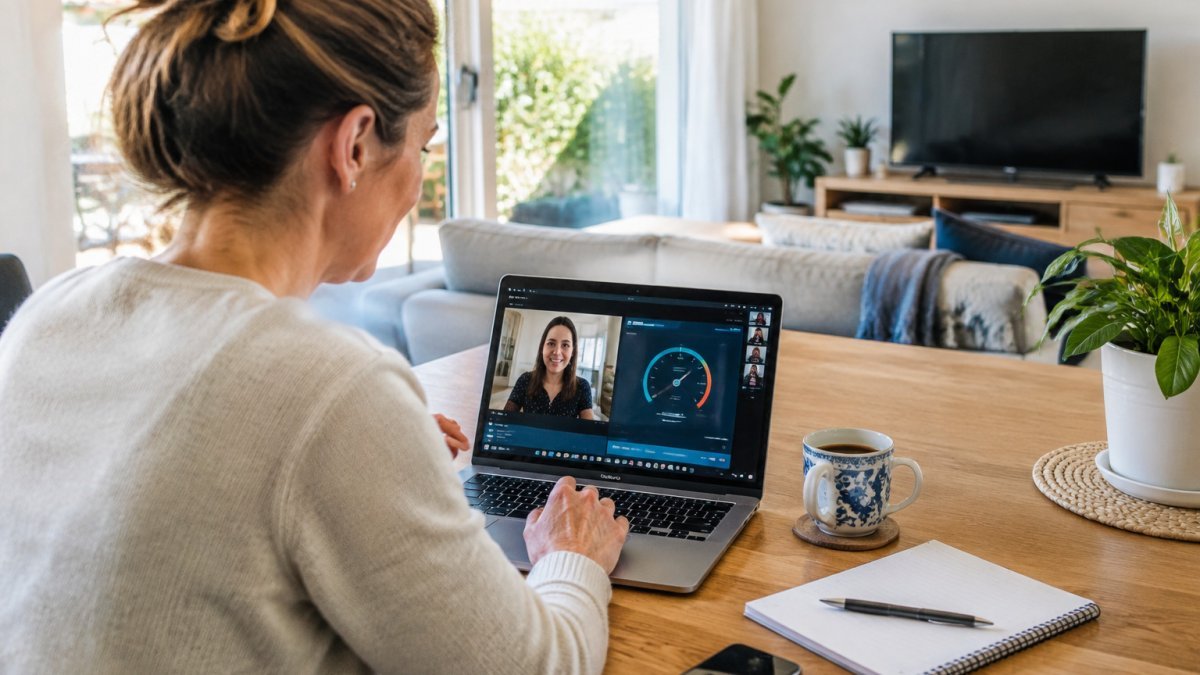
Before any important lesson, test your connection at the same time of day you plan to stream. Speeds often drop during busy evening hours when many households are online.
- Close large downloads, backups and video apps on every device.
- Connect the streaming computer to the router with a network cable if you can.
- Run a speed test from a reputable tester and note the upload result.
- Repeat the test three times at different points in the day.
- Compare the lowest upload figure with your planned bitrate plus the 50 per cent buffer.
- If the lowest result is below that figure, lower your resolution or move closer to the router.
Keep a written record of these results. Patterns across a week tell you more than a single test.
How to Reduce Buffering During Live Streaming
Buffering usually means the connection cannot send data as fast as the stream needs. Fixing it is often simple.
- Lower the bitrate or resolution in your streaming software
- Switch from Wi-Fi to a wired connection where possible
- Pause other uploads, backups and video calls on the same network
- Ask other household members to avoid heavy use during the lesson
- Restart the router before a major event to clear congestion
Latency, jitter and packet loss also cause problems. Latency is the delay in data travel, jitter is uneven delay, and packet loss is data that never arrives. Even a connection with good speed can stutter if these are high, so check them when a stream keeps breaking despite good test results.
Booking a Reliable Stream for Your Next Online Class
If your school or training team needs a stream that does not depend on a home connection, a managed service removes much of this planning. Webcasting Livestream provides live streaming for educational sessions, and their team can help you plan the setup before the day. For wider guidance on what a stream involves, see how to stream a town hall meeting online.
Some providers offer alternatives for teams comparing options, and you can read about live streaming platform alternatives and how they handle bitrate before you decide. For current pricing or a quote, visit the Webcasting Livestream website.
Upload speed is the number to watch. Test it, plan your bitrate with a buffer, and your online class will look the way you intended.
Frequently Asked Questions
How much bandwidth do I need to stream an online class?
For a single HD stream at 1080p, plan for roughly 3 to 6 Mbps of upload speed, with the exact figure depending on frame rate and the encoder settings you use. Add a safety buffer of at least 30 per cent above that figure so brief dips in connection quality do not interrupt the class. Most home and school connections in Australia offer far more download speed than upload speed, so check the upload figure specifically before you go live.
Is 5 Mbps enough for an online class?
A 5 Mbps upload speed can support a single 720p stream at a moderate bitrate, but it is tight for 1080p and leaves little room for anything else on the network. If other people in the household or school are using the same connection, 5 Mbps is usually not enough. Test your upload speed at several times of day, and if the result sits close to the bitrate you need, consider a wired connection or a higher-speed plan before the class begins.
What upload speed is recommended for live streaming a class?
For a reliable HD class stream, aim for an upload speed of at least 10 Mbps, which leaves room for a 1080p stream at a safe bitrate plus a margin for fluctuations. Single 720p streams can run on less, but the speed you actually need depends on your chosen resolution, frame rate and how many devices share the connection. Measure upload speed rather than relying on the advertised plan speed, because the two can differ considerably.
How can I improve my internet connection for a live class?
Connect the streaming device to the router with an Ethernet cable rather than Wi-Fi, close background downloads and cloud backups, and ask other household members to avoid heavy streaming during the class. Restart the router if speeds are inconsistent, and check whether the plan’s upload speed is sufficient for your chosen resolution. If the connection still drops, a cellular backup or a secondary internet service can act as a fallback.