7 Steps to Stream Town Hall Meetings Online
Last Updated: November 13, 2026
Quick Summary
To stream town hall meetings online, plan a run sheet first, then pick a platform your audience can already use, such as an embedded player on your own domain with a social simulcast for reach. Reliable town hall streaming also needs clean audio, a wired connection, a backup path, captions, and a full dry run before go-live.
- Build a minute-by-minute run sheet with a five-minute buffer before the live start.
- Embed the primary player on your own domain and simulcast to one social channel for reach.
- Use a wired internet connection and keep a mobile hotspot on standby as backup.
- Rehearse the mid-meeting switch to a holding slate for confidential items during the dry run.
- Publish the recording to a stable archive page with transcript and captions within a day.
Table of Contents
- Step 1: Plan Your Town Hall Broadcast Before You Touch a Camera
- Step 2: Choose a Town Hall Meeting Streaming Platform That Fits Your Audience
- Step 3: Set Up Live Streaming Equipment for Meetings That Won’t Fail
- Step 4: How to Make a Livestream Accessible to Every Viewer
- Step 5: Test, Rehearse, and Run a Full Dry Run
- Step 6: Manage Security, Privacy, and Public-Record Requirements
- Step 7: Record, Archive, and Measure Your Meeting Stream
- Get a Quote for Managed Town Hall Streaming
- Frequently Asked Questions
Step 1: Plan Your Town Hall Broadcast Before You Touch a Camera
Most town hall streaming failures start weeks before anyone opens a laptop, with a vague agenda, unclear audience, and no run sheet. Organisers often book equipment and pick a platform before planning what happens on screen.
Planning a town hall broadcast means deciding four things early: who is watching, what they need to see, how long each segment runs, and who speaks when.
Build a Run Sheet With a Town Hall Meeting Agenda Template
A run sheet is your minute-by-minute script, mapping every segment, speaker, camera shot, and slide change.
Use a simple table format with these columns:
- Time (start and end, to the minute)
- Segment (welcome, presentation, Q&A, close)
- Speaker and role
Build in five minutes of buffer before the live start. Add a hard stop for Q&A. And decide in advance who monitors questions and how they reach the chair.
Watch out: the most common planning mistake is leaving Q&A unstructured. Unscripted audience questions are where streams overrun and where moderators freeze on camera.
Step 2: Choose a Town Hall Meeting Streaming Platform That Fits Your Audience
The right platform is the one your audience can already use, not the one with the longest feature list. A town hall meeting streaming platform needs reliability, simple access, and a viewing page that works on any device. Most organisers run two channels at once: a controlled player on their own site and a social simulcast for reach.
Compare the three platform types by what they actually control
| Platform type | Reach | Access control | Moderation | Accessibility | Best for |
|---|---|---|---|---|---|
| Embedded player on your own domain | Moderate, depends on your site traffic | Strong: public page, unlisted link, or registered viewers | You own the chat and Q&A queue | You control the player, captions, and transcript placement | Public meetings where the record and the viewing page must stay under your control |
| Social platform live (Facebook, YouTube, LinkedIn) | High, notifications and shares | Weak: usually public or unlisted, hard to restrict | Platform tools only; comments can be switched off but not fully curated | Captions depend on the platform; transcripts are inconsistent | Reaching residents who already follow the council or organisation |
| Dedicated streaming service (e.g. a managed webcast vendor) | Moderate to high, via embed and simulcast | Strong: registration, passwords, geo-restriction | Vendor or operator tools, often with a Q&A moderator view | Usually the strongest caption and transcript workflow | Meetings with confidential segments, large audiences, or record-keeping duties |
A common pattern is to embed the primary player on your own domain, simulcast to one social channel for reach, and publish the archive on the same page so the link never changes.
Ask the questions that separate vendors
Before you commit, put these to any provider:
- Can viewers watch without downloading an app, and does the player work on older mobile browsers?
- Does it support a public page, an unlisted link, and registered viewers on the same event?
- What is the tested concurrent viewer ceiling, and what happens to latency as you approach it?
Weigh the trade-offs honestly
Social-only is cheapest and fastest, but gives the least control over who watches, comment moderation, and recording retention. A self-hosted embed gives the most control but depends on your web team and bandwidth.
If you are assessing vendors formally, our guide on how to evaluate webcasting platform compliance standards walks through the questions to put to any provider.
Watch out: the most common platform mistake is choosing a social-only channel for a meeting that later moves into a confidential item, by then you cannot pull the stream back, and the recording sits on a platform you do not control.
Step 3: Set Up Live Streaming Equipment for Meetings That Won’t Fail
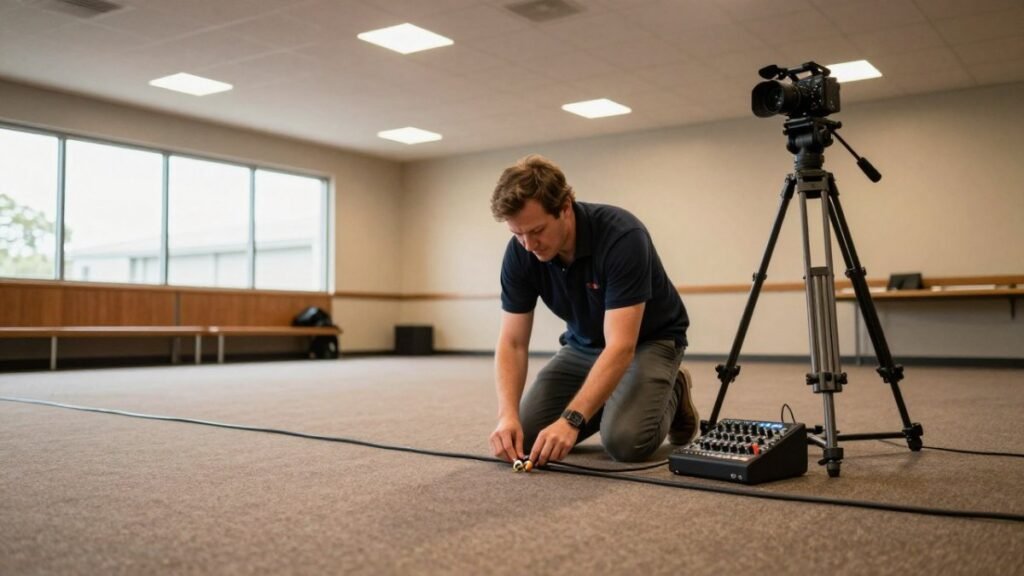
Reliable live streaming equipment for meetings is simpler than most people expect. You do not need a broadcast studio. You need clean audio, a stable connection, and a backup path if either fails.
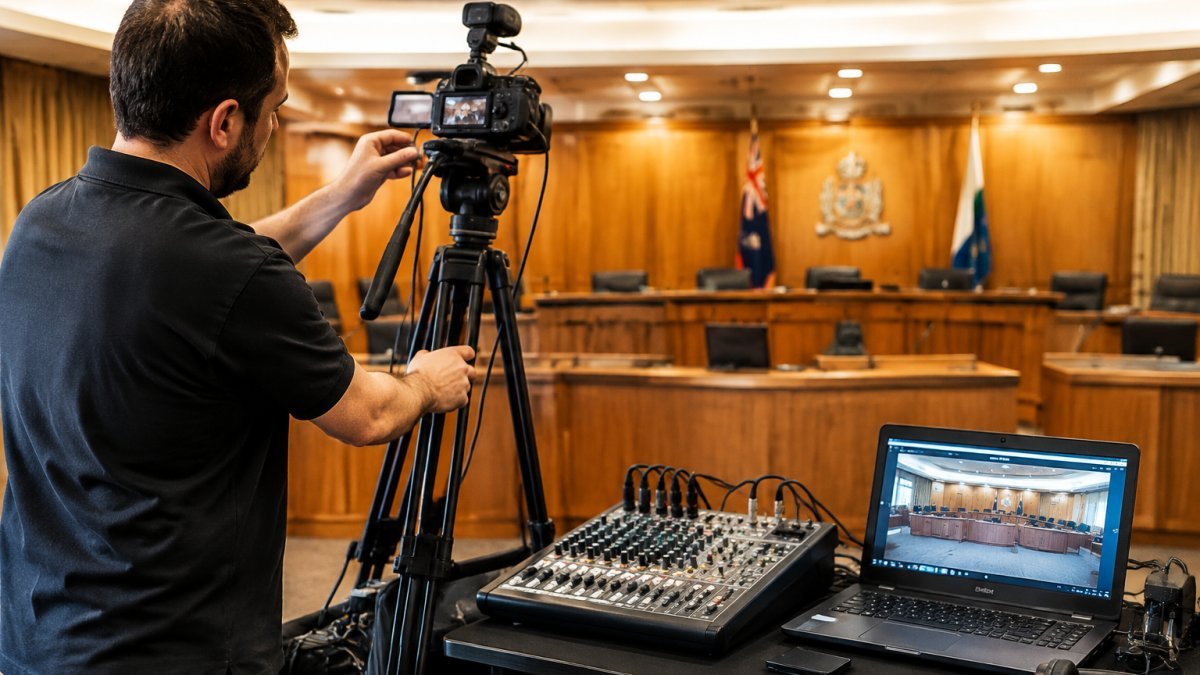
The core kit looks like this:
- One or two cameras on tripods, positioned for the chair and the speaker
- A wired or lapel microphone per speaker, plus a room mic for audience questions
- A hardware encoder or capture device connected to your laptop
Audio matters more than video. Viewers forgive a soft image but not muffled speech, so test every microphone before the meeting starts.
For larger rooms with multiple camera angles, our multi-camera setup guide covers switching and workflow in detail.
Step 4: How to Make a Livestream Accessible to Every Viewer
Accessibility is not optional for public meetings, and it is straightforward to build in. To make a livestream accessible, plan for captions, clear audio, readable slides, and a viewing page that works with screen readers.
Start with these basics:
- Live captions, either human or automated with a human check
- A transcript published alongside the recording
- High-contrast slides with large text
Community members with hearing loss, low vision, or limited bandwidth all benefit from the same groundwork.
For a deeper look at inclusive virtual meetings, see our guide to accessible virtual AGM streaming solutions.
Step 5: Test, Rehearse, and Run a Full Dry Run
A dry run is the cheapest insurance you will ever buy. Run the entire meeting once, end to end, with the real equipment, the real platform, and at least one remote viewer checking the feed.
Your rehearsal checklist:
- Confirm every microphone and camera feeds into the encoder
- Stream for at least fifteen minutes to expose connection issues
- Check the viewing page on a phone, a tablet, and a desktop
Assign one person to watch the stream as a viewer, not as a technician. They will spot the problems the production team misses.
Step 6: Manage Security, Privacy, and Public-Record Requirements
Security and record-keeping are where public meetings differ from corporate ones. You need to control who can watch, protect sensitive segments, and keep a complete record of proceedings. Treat this as an operating procedure rather than a policy statement.
Decide the access model before the agenda is final
Pick one model per meeting and write it into the notice:
- Open public link, anyone with the URL can watch. Simplest, but you cannot restrict who records or re-shares.
- Unlisted link, published only on the meeting page and in the notice. Reduces casual discovery without locking out residents.
- Registered viewers, name and email captured before entry. Useful when you need an attendance record or when the meeting includes sensitive but not confidential items.
Build a mid-meeting switch for confidential items
Many public meetings move into a confidential item partway through. Plan the switch as a rehearsed sequence, not an improvised one:
- The chair announces that the meeting is moving into closed session and states the reason.
- The operator switches the player to a holding slate, a static screen with the meeting name and a message that the public broadcast is paused.
- The encoder stops sending audio and video to the public channel; the recording continues locally if the item must be minuted.
- The operator confirms on a second device that the public player is showing the slate, not the room.
- At the end of the closed item, the chair announces the return to open session and the operator restores the feed.
Rehearse this switch in the dry run. It is the single control most likely to fail under pressure.
Get consent notices right
A consent notice for speakers and anyone visible on camera should state, in plain language:
- that the meeting is being streamed live and recorded;
- where the recording will be published and for how long;
- who to contact about access, corrections, or removal requests;
Display the notice on the viewing page, read a short version at the start of the meeting, and include it in the agenda pack. For public Q&A speakers, a moderator script that confirms consent before unmuting is the simplest safeguard.
Handle personal information consistently
Streaming captures personal information, faces, voices, names, and sometimes addresses read into the record. Collect only what the meeting needs, tell people what you will do with it, store it securely, and delete it when the retention period ends. Privacy and record-keeping obligations apply to most organisations and can vary by jurisdiction. Confirm your specific duties with your own legal and governance advisers.
Set retention to match your record-keeping duties
Retention is where streaming and records management meet. Decide, before the meeting:
- the minimum retention period required by your record-keeping obligations;
- whether the master recording, the transcript, and the captions are kept together or separately;
- who can access the archive and who can request removal or correction;
For government meetings specifically, our guide on secure live streaming for government meetings covers compliance and public-record requirements in more depth.
Watch out: the most common compliance failure is treating the stream as a broadcast only, if the recording, transcript, and chat logs are not captured into the records system, you can end up with no defensible record of what was said.
Step 7: Record, Archive, and Measure Your Meeting Stream
Every stream should leave you with three things: a clean recording, an archive viewers can find later, and numbers that tell you whether it worked.
Recording and archive basics:
- Record the full meeting automatically, not manually
- Publish the recording to a stable archive page within a day
- Add a transcript and captions to the archived version
Then measure. Track peak concurrent viewers, total views, average watch time, drop-off points, and how many people watched the recording afterward.
If you want the recorded output to look as polished as the live event, our live production viewing experience page shows what a managed production delivers.
| Step | What it covers | Time to allow |
|---|---|---|
| 1. Plan | Run sheet, agenda, owners | 1-2 weeks before |
| 2. Platform | Access, capacity, recording | 1 week before |
| 3. Equipment | Cameras, audio, connection | 2-3 days before |
| 4. Accessibility | Captions, transcript, contrast | 3-5 days before |
| 5. Rehearsal | Full dry run, remote check | 1-2 days before |
| 6. Security | Access, consent, retention | Before go-live |
| 7. Record and measure | Archive, analytics, review | Same day and after |
Get a Quote for Managed Town Hall Streaming
Running all seven steps yourself is possible. Doing it while also chairing the meeting, managing speakers, and handling live questions is where things break. That is the gap a managed service closes.
Webcasting Livestream handles the production end to end, with fail-safe procedures designed to keep your stream running, HD quality across all devices, and recordings provided to you at no extra cost.
If you are weighing a managed service against doing it in-house,
Get started with Webcasting Livestream and run your next town hall with confidence.
Town hall streaming rewards preparation more than equipment.
Frequently Asked Questions
How do you stream a town hall meeting online?
Start by defining the meeting’s purpose and audience, then choose a town hall meeting streaming platform that supports your expected viewer count. Set up a camera, microphone, and encoder, run a full dry run at the venue, and go live with a backup connection ready. Record the stream for your archive, and publish the link and accessibility details at least a week ahead so community members can plan to watch.
What live streaming equipment for meetings do you actually need?
A basic setup includes an HD camera, a lapel or boundary microphone for the chair, an audio mixer, a hardware encoder, and a wired internet connection of at least 10 Mbps upload. Add a second camera for wide shots if the room is large. For high-stakes meetings, a redundant encoder and a backup 4G or 5G modem prevent dropouts. Test every cable and input before the day.
How do you make a livestream accessible for all viewers?
Add live captions and a transcript, and ensure the platform supports screen readers and keyboard navigation. Use high-contrast slides, speak clearly, and describe visual materials aloud. Publish an accessibility statement with contact information so viewers can request adjustments. Check playback on mobile phones and tablets, not just desktops.
Can you record a town hall meeting and share it afterwards?
Yes. Most platforms record automatically, and a managed provider should hand over the full video file at no extra cost. Store recordings in your own archive, add captions, and publish them alongside the meeting agenda template and minutes. Confirm recording retention rules and consent requirements before the meeting, especially for public forums and council meetings where transparency obligations apply.