
Table of Contents
- Why Reliable Webcasting Matters in Regional Areas
- Live Stream Troubleshooting: Diagnosing Common Issues
- Live Streaming Internet Speed Requirements for Stable Broadcasts
- Setting Up a Live Stream Backup Internet Connection
- Webcast Equipment Checklist: Pre-Event Testing
- Network Optimisation and Bandwidth Management
- Fallback Plans and Contingency Strategies
- Frequently Asked Questions
Last Updated: October 13, 2026
Why Reliable Webcasting Matters in Regional Areas
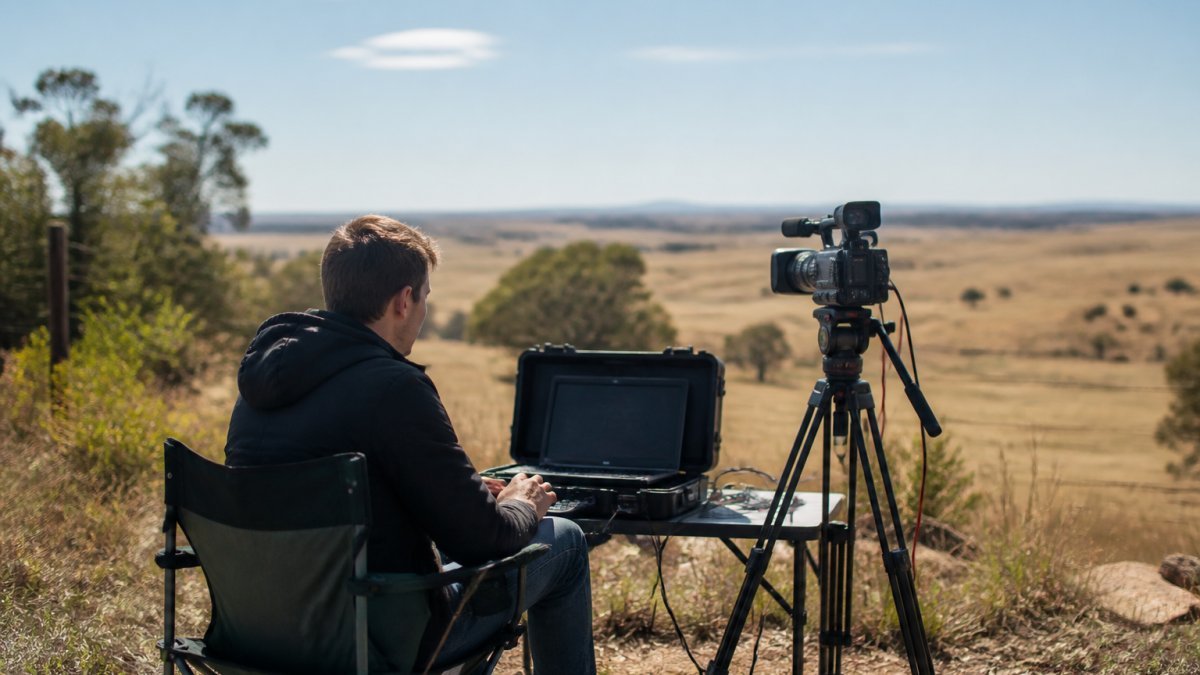
Reliable webcasting for regional areas is essential when internet quality varies dramatically across locations. Bandwidth constraints, network congestion, and hardware limitations create challenges metro-based solutions overlook.
A dropped stream during your AGM, product launch, or training event damages credibility and frustrates attendees. Prevention starts with understanding what can go wrong and building safeguards before you broadcast.
This guide covers practical steps to keep your live stream stable in regional areas: diagnostics, backup strategies, and equipment checks.
Live Stream Troubleshooting: Diagnosing Common Issues
Most streaming problems are presenter-side or attendee-side. Knowing which speeds up the fix.
Presenter-side diagnostics
Your broadcast originates from your location. If the stream fails here, it fails everywhere. Start with these checks before going live.
Check your internet connection first. Measure upload speed with a speed test tool.
Inspect all cables. A loose HDMI, frayed USB cord, or damaged power adapter can interrupt your stream mid-broadcast. Replace questionable cables before event day.
Restart your streaming software. Close and reopen it to clear memory and resolve many playback issues; if problems persist, restart your computer.
Disable unnecessary programs. Background apps consume bandwidth and processing power, so close email, video calls, downloads, and updates before streaming.
Attendee-side issues and fixes
Your stream may be perfect at source, but attendees experience buffering, freezing, or quality drops. These fixes are in their hands, but you can guide them.
Attendees should refresh their browser. A stale page cache causes playback delays; F5 or Ctrl+R reloads the stream and clears most buffering.
Reduce stream quality temporarily. Switching from HD to standard definition in the player reduces bandwidth demand and smooths playback.
Disconnect other devices. Pause downloads and video calls and disconnect smart home devices to free bandwidth for the live stream.
Update their browser. Outdated browsers struggle with modern video codecs, and older Chrome, Firefox, Safari, or Edge may not support the stream format.
Live Streaming Internet Speed Requirements for Stable Broadcasts
Your upload speed determines whether your stream stays stable or collapses under load, download speed matters less. In regional areas the gap between advertised and actual upload speed is wider than in metro areas, so plan around measured performance, not the number on your plan.
Practical upload targets by stream quality
These are working targets, not theoretical minimums. Build in headroom because regional connections fluctuate more than metro ones.
| Stream quality | Typical upload target | Notes |
|---|---|---|
| 480p (SD) | 1.5-2.5 Mbps | Suitable for talking-head workshops and slide-heavy sessions |
| 720p (HD) | 3-5 Mbps | Good balance for most online workshops |
| 1080p (Full HD) | 5-8 Mbps | Needs stable upload; risky on congested regional links |
| 1080p with screen share | 6-10 Mbps | Screen content compresses poorly; allow extra headroom |
Aim for roughly double the minimum for your chosen quality. Streaming at 720p? Target a sustained 6-8 Mbps upload so short dips don’t push you below the threshold.
Test at the times you’ll actually broadcast
Run speed tests at least a week before your event, repeating them at the times you’ll be live. Regional networks have pronounced peak windows, typically early evening and sometimes mid-morning. Test at your event’s exact start time, 30 minutes before and after, plus one mid-afternoon and one evening sample. Record upload speed, latency (ping), and jitter. Jitter matters as much as raw speed: a connection swinging between 8 Mbps and 2 Mbps stutters more than a steady 4 Mbps line, so high jitter means prioritising a wired connection or backup link.
What to do when upload speed falls short
If measured upload is below target, work through these options in order:
- Move to a wired Ethernet connection. Wi-Fi in regional venues often loses 30-50% of throughput through walls and distance.
- Reduce stream quality. Dropping from 1080p to 720p can cut upload demand by roughly half.
- Shift your broadcast window. If peak-hour speed is poor but off-peak is fine, schedule earlier or later.
- Ask your provider about event support. Some offer temporary speed boosts or priority for business events, ask about your plan and the date.
- Add a backup connection. A mobile hotspot on a different network can carry the stream if the primary link degrades. Test it first.
Run a 10-minute test stream at your planned quality and watch the upload graph in your streaming software. If it flatlines near your connection’s ceiling, you have no headroom for a dip.
Regional congestion and shared bandwidth
Network congestion is common where fewer providers operate and fixed wireless or satellite links are shared, one busy user can drag speeds down for everyone. Before your event, ask household members and staff to pause large downloads, cloud backups, and video calls, and check whether other tenants in a shared venue are running bandwidth-heavy services.
Treat upload speed as a budget: allocate most to the stream, keep a reserve for audio and screen share, and avoid anything else competing for the same link during the broadcast.
Setting Up a Live Stream Backup Internet Connection
A backup connection is your safety net: if your primary internet fails mid-stream, you switch without interruption.
Mobile hotspot as backup. Tether your smartphone to your streaming computer and test the setup before your event.
Dual internet setup. Some streaming software lets you add a secondary connection and switches automatically if the primary drops.
Keep backup devices ready. If you’re using a mobile hotspot, ensure the phone is fully charged. Have a charging cable nearby.
Monitor both connections during the stream. If the primary weakens, switch manually to the backup before failure occurs.
We recommend a backup plan even if you don’t use it. The confidence of a safety net reduces stress and improves your on-camera presence.
Webcast Equipment Checklist: Pre-Event Testing
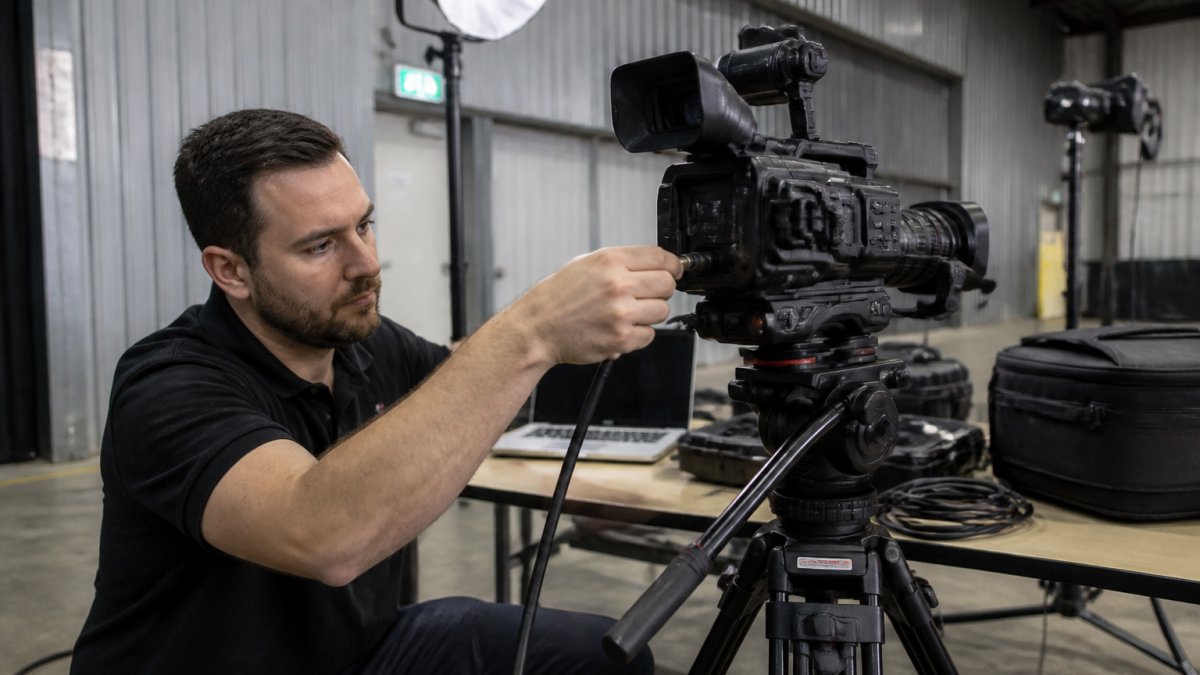
Untested equipment fails at the worst moment. A structured checklist catches problems days before your event, not minutes before going live, separating presenter-side from attendee-side checks so you fix the right problem faster.
Presenter-side pre-event testing (T-7 days to T-1 day)
Camera: Verify it powers on, check the lens for dirt or damage, and confirm it appears in your streaming software’s device list.
Microphone: Plug it in and test it in your streaming software, speaking at normal volume to verify the level registers and checking for buzzing, crackling, or distortion.
HDMI cables and USB connections: Inspect each cable for damage and test that the signal passes through.
Router and modem: Restart both. Unplug the modem, wait 30 seconds, plug it back in, then do the same for the router. This clears temporary connection issues.
Streaming computer: Live streaming generates large temporary files, so check your hard drive has at least 50GB free and update your operating system and graphics drivers.
Audio troubleshooting beyond volume levels
Most guides stop at “check your levels.” In a workshop, audio problems are the most common cause of attendee complaints, and they rarely come from volume alone. Work through these tests:
- Echo: Usually a participant’s speakers feeding back into their microphone. Ask attendees to use headphones, or enable echo cancellation.
- Feedback (squeal): A microphone picking up its own output. Move it away from speakers, lower the gain, and avoid pointing it at the room’s audio output.
- Muted inputs: Check the correct microphone is selected in your streaming software, not the laptop’s built-in mic. Record 30 seconds and listen back.
- Bluetooth delays: Bluetooth mics and headsets add 100-300 ms of latency, making conversation feel out of sync. For Q&A workshops, prefer wired USB or XLR microphones.
- Microphone selection: A lapel mic suits a moving presenter, a desk mic a seated one, a headset a noisy room. Match the mic to how you’ll present, not to what’s cheapest.
Test audio with the same platform and browser your attendees will use. A microphone that works in one browser can fail in another due to permission or codec differences.
Attendee-side checks you can send in advance
Send attendees a short pre-workshop checklist so they arrive ready:
- Use a wired connection if possible, or sit close to the router.
- Close other video calls, downloads, and streaming apps.
- Update their browser to the latest version.
- Test their microphone and speakers in the platform’s pre-join screen.
- Have a phone dial-in number ready as an audio fallback.
During the workshop: a timed diagnostic workflow
When something goes wrong mid-session, work through this order rather than guessing:
- First 30 seconds, confirm the scope. Ask in chat whether everyone is affected or just some. If only some, it’s attendee-side; if everyone, it’s presenter-side or platform-side.
- Next 60 seconds, check your upload graph. If it’s flatlining, reduce stream quality or switch to your backup connection.
- Next 2 minutes, check the platform status. If degraded, switch to your pre-recorded backup segment and notify attendees via chat or email.
- Ongoing, keep the session usable. Post slides, enable captions, and share a dial-in number so the workshop continues even if video fails.
Software and driver updates
Streaming software: Download the latest version. Check for updates within the application itself. Older versions may have bugs that newer releases fixed.
Browser: Update to the current version. Outdated browsers may not support modern video codecs or security standards.
Graphics drivers: Download the latest driver from your graphics card manufacturer’s website.
Operating system: Install all available updates. Windows and macOS regularly release patches that improve stability and performance.
Antivirus software: Disable antivirus scanning during your stream, since some programs monitor outgoing data and slow your connection. Re-enable it afterwards.
Run a full test of your setup: start your streaming software, connect all devices, and do a practice broadcast to a private test stream.
Network Optimisation and Bandwidth Management
Your network carries your stream to the world. Optimising it prevents bottlenecks that interrupt playback.
Use a wired Ethernet connection. Connect your streaming computer directly to the router.
Position your router strategically. Place it centrally, away from walls and metal objects, and elevate it off the ground to improve signal strength throughout your venue.
Disable bandwidth-heavy services. Turn off cloud backups, automatic updates, and background downloads. These run silently and consume bandwidth you need for your stream.
Monitor bandwidth during the stream. Watch real-time usage in your router’s admin panel and investigate unexpected spikes, someone may have started a download or video call.
Fallback Plans and Contingency Strategies
Equipment fails. Connections drop. Networks crash. A fallback plan keeps your event moving when things go wrong.
Have a backup venue location. Identify a secondary location with better internet quality.
Record locally as well as streaming. Capture your stream to your computer’s hard drive while broadcasting, so if the live stream fails you still have a recording to edit and upload later.
Have a communication plan. Prepare an email template or social media post explaining the issue and when you’ll resume, so attendees aren’t left guessing.
Keep contact information for your service provider. Have your ISP’s support number and account details ready in case you need technical support quickly.
Technical failures don’t have to derail your event.
If managing these technical requirements feels overwhelming, Webcasting Livestream handles the complexity for you.
Frequently Asked Questions
What internet speed do I need for reliable live streaming in a regional area?
Upload speed is the critical factor for live stream reliability. For HD video at 1080p, aim for a minimum of 5-8 Mbps upload speed. Download speed should be at least 10 Mbps to support concurrent tasks. Regional areas often experience variable speeds, so test your connection 24-48 hours before the event and identify peak usage times that may affect performance.
Why does my live stream keep cutting out, and how do I fix it?
Stream interruptions typically stem from insufficient bandwidth, network congestion, outdated drivers, or hardware issues. Start by testing your internet connection and closing unnecessary applications. Restart your router and streaming software, update your browser and graphics drivers, and check HDMI cable connections. If problems persist, reduce stream quality temporarily or activate a backup internet connection to maintain continuity during your webcast.
Should I have a backup internet connection for a live webcast?
Yes, especially in regional areas where connectivity can be unpredictable. A backup internet connection, such as a mobile hotspot or secondary fixed-line service, ensures your live stream continues if your primary connection fails. Test both connections before the event, configure automatic failover if your streaming software supports it, and keep the backup connection isolated from other devices to preserve bandwidth for the webcast.
What should I include in a webcast equipment checklist before going live?
Test your camera and microphone for audio clarity and video quality. Inspect HDMI cables and all hardware connections for damage. Verify that your streaming software is up to date and compatible with your browser and operating system. Check router and modem stability, confirm upload and download speeds meet your requirements, and test playback on multiple devices (desktop, tablet, mobile) to ensure smooth video playback across all platforms.