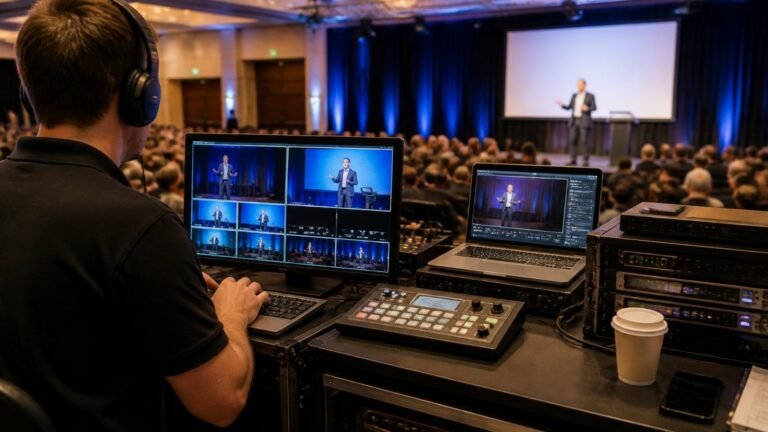
How to Set Up Fail-Safe Live Broadcast Procedures
Table of Contents
- What Fail-Safe Means in a Live Broadcast
- What You’ll Need Before You Configure Anything
- Step 1: Map Your Signal Chain and Single Points of Failure
- Step 2: Configure Encoder Failsafe Mode and Channel Mapping
- Step 3: Build Live Streaming Redundancy Best Practices Into Your Setup
- Step 4: Choose Backup Internet Solutions for Live Events
- Step 5: Write a Live Broadcast Disaster Recovery Plan
- Testing Your Fail-Safe Broadcast Procedures Before Go-Live
- Where Managed Fail-Safe Procedures Pay Off
- Frequently Asked Questions
Last Updated: September 14, 2026
What Fail-Safe Means in a Live Broadcast
Knowing how to set up fail-safe live broadcast procedures means building a system designed to keep producing usable output when a component fails, rather than going dark. The term gets used loosely in streaming circles, so let’s be precise: fail-safe means the failure triggers a defined, tested response automatically, not that failure becomes impossible.
That distinction matters. We’ve watched too many event teams treat “we have a backup encoder” as a complete strategy, then discover during a live AGM that nobody configured what the backup actually does when the primary drops.
Fail-safe procedures cover three layers: the signal chain (cameras, switcher, encoder), the network path (primary and backup connections), and the human layer (who does what, when). Most guides cover the first and ignore the rest. That’s the gap this article closes.
What You’ll Need Before You Configure Anything
Gather your documentation before touching a single setting. Failsafe configuration fails most often because teams configure hardware they haven’t mapped.
Your checklist:
- A written signal chain diagram, camera to viewer
- Encoder model, firmware version, and admin credentials
- Transmitter and receiver documentation for any wireless links
- Primary and backup internet connection details, including upload speeds
- Contact list for your streaming provider’s technical escalation
- A stopwatch for latency testing
The ACMA spectrum and communications guidance is worth reviewing if you’re using licensed wireless transmitters, since operating requirements affect how you can legally run backup links at a venue.
Step 1: Map Your Signal Chain and Single Points of Failure
Draw your chain on one page: source, capture, switching, encoding, ingest, delivery, playback. Then mark every component whose failure kills the stream.
The usual culprits:
- A single encoder with no hot spare
- One network path shared by video and venue Wi-Fi
- A wireless transmitter with no wired fallback
- One operator holding all the recovery knowledge
Any component marked as a single point of failure needs either redundancy or a documented manual workaround. There’s no third option.
Step 2: Configure Encoder Failsafe Mode and Channel Mapping
Failsafe mode is the behaviour an encoder or transmitter executes when it loses input or connection. Configure it deliberately rather than accepting the default.
Most encoders offer options like “hold last frame,” “switch to slate,” or “failover to backup input.” For a corporate broadcast, a branded slate with a holding message beats a frozen frame every time, because viewers understand it’s intentional.
Channel mapping deserves equal attention. Map every output channel explicitly, and document which channel feeds your backup ingest. If your primary and backup paths share a channel assignment, you’ve built redundancy that doesn’t work.
Leaving encoder failsafe on the factory default is the single most common configuration mistake. Many units default to dropping the connection entirely, which means your backup never activates because nothing told it to.
Step 3: Build Live Streaming Redundancy Best Practices Into Your Setup
Live streaming redundancy best practices come down to eliminating shared failure points. Two encoders plugged into the same switch are not redundant.
A workable redundancy structure:
- Encoder redundancy: primary and hot-standby encoder, independent power
- Path redundancy: two ingest endpoints on separate providers
- Network redundancy: wired primary, separate wireless backup
- Power redundancy: UPS on encoder and network gear
The gap most teams miss is network-level redundancy. If both your ingest paths travel over the same connection, you have failover logic with nothing to fail over to. Route backup ingest traffic over a genuinely separate connection, ideally a different carrier entirely.
Step 4: Choose Backup Internet Solutions for Live Events
Backup internet solutions for live events fall into four practical categories: bonded cellular, a second fixed line, satellite, and venue-provided alternatives. The category matters less than the mechanism, how traffic actually moves from primary to backup when the primary degrades.
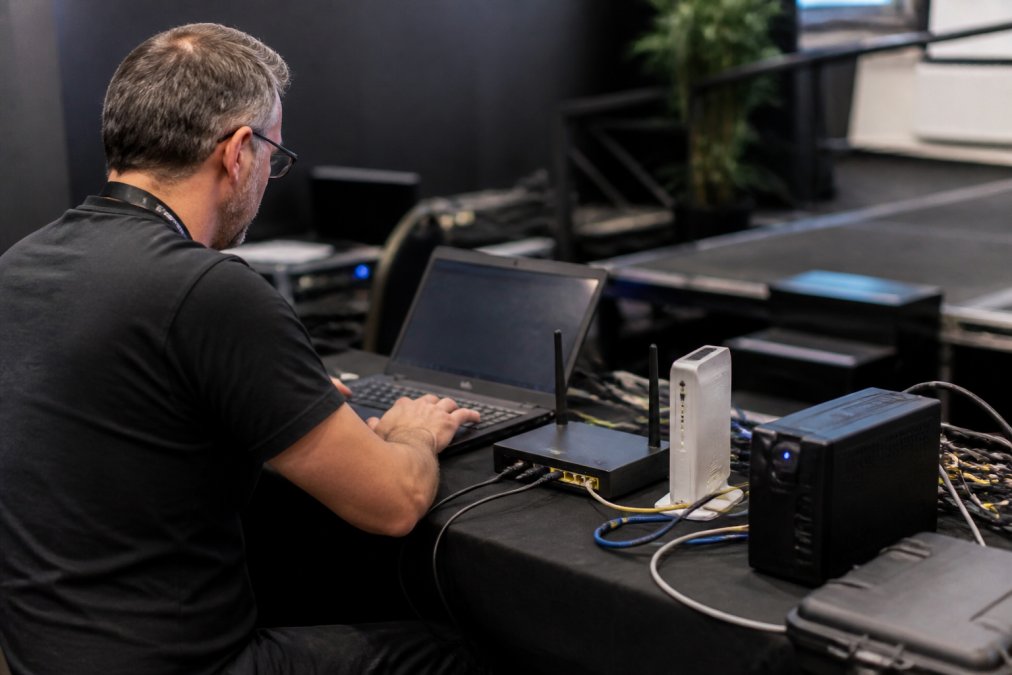
Reliable connectivity ensures that the stream remains stable, just as consistent broadcast studio lighting maintains the visual integrity required for professional production.
| Backup Option | Best For | Main Trade-off |
|---|---|---|
| Bonded cellular | Regional venues, temporary sites | Depends on mobile coverage; needs multiple carriers to be genuinely redundant |
| Second fixed line | Permanent venues, studios | Installation lead time; often shares a pit or exchange with the primary |
| Satellite | Remote locations | Higher latency; unsuitable for interactive or low-latency contribution |
| Venue secondary link | Existing infrastructure | Unknown contention; usually shares upstream with the primary |
How failover actually triggers
A backup path that only activates when the primary cable is unplugged is not fail-safe, it is a manual workaround. Real failover watches for degradation, not just disconnection. Configure your encoder or router to switch on:
- Packet loss above a threshold, commonly 2-5% sustained over 3-5 seconds
- Jitter beyond tolerance, typically above 30 ms for contribution feeds
- Round-trip latency spikes, sustained increases that indicate congestion rather than a clean break
- Bitrate collapse, the encoder cannot sustain the target bitrate for the configured window
Set the thresholds deliberately. Too tight and you will flap between paths mid-sentence; too loose and viewers see the failure before the system does.
Bonding versus failover
These are different mechanisms and teams often confuse them.
- Failover uses one path at a time and switches when the primary fails. Simpler, cheaper, but the switch is visible.
- Bonding aggregates multiple links into one logical connection, so a single link dropping reduces capacity rather than killing the stream. Smoother, but requires compatible hardware at both ends and adds latency.
For a corporate AGM or a product launch where a brief slate is acceptable, failover is usually enough. For a paid ticketed stream or a live auction, bonding is the safer choice because the viewer never sees the transition.
Secondary ingest points
Even a perfect local network cannot save you if your streaming provider’s ingest goes down. Configure a second ingest endpoint on a different provider or a different region, and make sure your encoder is pointed at both. The two ingest URLs should not resolve to the same data centre, check this, because some providers quietly route multiple ingest hostnames to the same facility.
A common pattern is primary ingest to a mainstream CDN and backup ingest to a secondary provider, with the encoder configured to publish to both simultaneously where the platform supports it. If simultaneous publishing is not available, document the manual switch and rehearse it.
Test at the venue, at event time
Test your backup path at the venue, at the same time of day as your event. A connection that performs at 9am may behave differently during a peak period. For regional events especially, run a real upload test with your actual bitrate, not a speed test app. Speed tests measure burst capacity; your encoder needs sustained throughput.
Run the test twice: once with the primary connected, once with it physically unplugged. The second test is the one that tells you whether failover actually works.
Step 5: Write a Live Broadcast Disaster Recovery Plan
Knowing how to set up fail-safe live broadcast procedures includes a disaster recovery plan: a one-page document naming what breaks, who responds, and what they do. If it’s longer than a page, nobody reads it during an incident.
Include these sections:
- Failure scenarios: encoder loss, network loss, power loss, platform outage
- Trigger points: the exact symptom that starts each response
- Named owners: one person per scenario, with a backup name
- Recovery steps: numbered, in order, no ambiguity
- Communication script: what gets posted to viewers and when
Run a tabletop walkthrough with everyone who’ll be on comms during the event. The plan is only as good as the person executing it under pressure.
Testing Your Fail-Safe Broadcast Procedures Before Go-Live
Test by breaking things on purpose. Pull the primary network cable mid-stream. Kill the primary encoder. Watch what actually happens, and time how long recovery takes.
Record your results against this table:
| Test | Expected Result | Pass Criteria |
|---|---|---|
| Pull primary network | Backup path activates | Under 10 seconds |
| Power down primary encoder | Standby takes over | Under 15 seconds |
| Force transmitter signal loss | Failsafe mode triggers | Slate appears, audio holds |
| Restore primary mid-stream | Graceful return, no viewer-visible glitch | Under 30 seconds, no re-buffer |
If recovery takes longer than your audience’s patience, adjust the configuration and test again. Two full rehearsal cycles before a live event is the minimum we’d recommend, and one of those should include your actual presenters, not just the technical crew (Best Practices for Live Stream Distribution).
The recovery test most teams skip
Almost every guide stops at the failover. The harder problem is the return, getting the primary back online without the viewer noticing a second transition. This is where most fail-safe setups quietly fail, because the system was never designed to come back.
A graceful recovery has four stages:
- Stabilise the primary. Confirm the original encoder, network path, or transmitter is genuinely healthy before switching back. A flapping primary will cause a second outage within minutes.
- Match the stream state. The primary must resume at the same resolution, frame rate, bitrate, and audio sync as the backup. If they differ, the viewer sees a visible jump on switchback.
- Crossfade or cut cleanly. Where the platform supports it, crossfade between backup and primary over 1-2 seconds. Where it does not, cut during a natural transition, a camera change or a slide advance, rather than mid-sentence.
- Confirm and log. Watch the primary for at least 60 seconds before declaring recovery complete. Log the time, the trigger, and the switchback duration for your post-event review.
What to do when the primary cannot be recovered
Sometimes the primary is gone for the rest of the event. In that case, the backup becomes the primary, and your job shifts from recovery to endurance.
- Reduce bitrate if needed. A backup path may not sustain the primary’s bitrate indefinitely. Dropping from 1080p to 720p is better than dropping the stream (HTTP Live Streaming).
- Notify the platform. If you are streaming to a provider with a support line, tell them you are on backup ingest so they do not treat the switch as an anomaly.
- Update the viewer-facing message. If a slate is on screen, keep it accurate. “We’ll be right back” is fine for 30 seconds; after two minutes, say what is happening.
- Preserve the recording. Confirm the backup path is recording locally or to a secondary destination, so the event is not lost even if the stream is.
Post-event review
Within 24 hours of the event, review the test log against what actually happened. The gaps between expected and actual recovery times are your configuration backlog. Fix the top two before the next event; do not try to fix everything at once.
The measure of a fail-safe procedure is not whether it survives a failure, it is whether the viewer never knew one happened. Test the return path as hard as you test the failure.
Where Managed Fail-Safe Procedures Pay Off
Building this yourself is possible. Maintaining it across every event, with every venue’s quirks, is where internal teams burn out.
Webcasting Livestream runs fail-safe procedures as standard on every managed broadcast, backed by a no-drop-off guarantee and full recording provided at no extra cost. Your content stays yours, delivered in HD across every device your audience uses. If your team would rather focus on the event than the infrastructure, get a quote.
Frequently Asked Questions
What are the essential components of a fail-safe live streaming setup?
A fail-safe broadcast needs four things working together: a primary encoder with a configured failsafe mode, a second encoder or ingest path on standby, two independent internet connections from different providers, and a monitoring screen showing bitrate, latency and packet loss in real time. Add a UPS so a power blip does not kill the encoder, and a documented switchover procedure the operator has rehearsed. Miss any one of these and a single failure can take the whole stream down.
How do you manage internet redundancy for live broadcasts?
Use two connections that do not share a failure path: for example, a fixed-line service plus a 5G modem on a different carrier. Bonding routers can combine both links, but simple automatic failover is often more predictable. Test the switchover by unplugging the primary link mid-stream and timing how long the backup takes to carry the feed. Keep the backup powered and connected at all times, not packed in a bag, because a cold start adds minutes you do not have during a live event.
How can you test your fail-safe procedures before going live?
Run a full rehearsal 24 to 48 hours before the event. Pull the primary internet cable, disable the main encoder, and mute the primary audio feed one at a time while watching the stream on a separate device. Time each recovery. Anything that takes longer than 10 to 15 seconds needs fixing before event day. Also test at the same time of day as the live event, since evening peak-hour congestion behaves differently from a quiet morning test.
What are the most common points of failure in a live stream?
The usual culprits are the internet connection, the encoder software crashing or losing its binding to the ingest server, audio dropouts from a loose cable, and power loss at the venue. Less obvious ones include a full encoder hard drive stopping local recording, and channel mapping errors that send the wrong feed to the output. A live broadcast disaster recovery plan should name each of these, the person responsible, and the exact recovery step for every one.