
Table of Contents
- What You’ll Need Before You Start
- Step 1: Plan Your Multi-Camera Live Streaming Setup
- Step 2: Connect Cameras to Your Computer or Switcher
- Step 3: Choose Camera Angles for Live Streaming a Town Hall
- Step 4: Build a Virtual Town Hall Production Checklist
- Step 5: Set Up Secure Town Hall Live Streaming
- Step 6: Test the Setup Before You Go Live
- Common Mistakes to Avoid
- Frequently Asked Questions
Last Updated: October 15, 2026
What You’ll Need Before You Start
A multi-camera virtual town hall is a live broadcast using two or more cameras, switched in real time, to cover speakers, slides and audience reactions during a company-wide or public meeting.
At Webcasting Livestream, we build these setups for organisations that cannot afford a dropped feed mid-meeting. Below: what to buy, how to connect it, and how to test it.
Cameras and Lenses
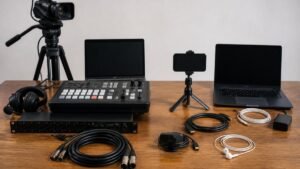
You need at least two cameras; a third is better. Most teams mix camcorders and smartphones.
- One wide camera for the whole stage
- One tighter camera for the speaker
- A third for audience shots or a slide feed
Check that each camera outputs a clean video signal. Built-in microphones are not enough.
Switching, Audio and Cabling
A video switcher takes your camera feeds and lets you cut between them live, hardware or laptop software.
Audio matters more than video: if viewers see well but hear badly, they leave.
- One lapel or handheld microphone per speaker
- A backup recorder for audio
- Cables long enough to reach every camera position
Run one spare cable of every type you use. A single failed HDMI lead has ended more town halls than any software crash.
Step 1: Plan Your Multi-Camera Live Streaming Setup
Planning a multi-camera live streaming setup starts with one question: what must the audience see and hear, and in what order?
Map the agenda first. A town hall usually has a host, one or two speakers, a Q&A block and a close.
- Host opening: wide shot, then a tighter frame
- Speaker segments: side profile plus centre stage
- Q&A: speaker plus the person asking
Decide who switches the cameras: one person can run two, but three or more need a dedicated operator.
How Many Cameras Do You Actually Need?
Two cameras cover most town halls. Three let you show audience reaction without losing the speaker. Four or more only suit large productions with a full crew.
If you stream to remote staff as well as a room, plan a separate slide feed so the presentation stays readable on small screens.
Step 2: Connect Cameras to Your Computer or Switcher
Connecting cameras to your computer or switcher comes down to three options: USB, HDMI, or a capture card.
USB is simplest: plug the camera into the laptop and it appears as a video source, working well within a few metres.
HDMI carries a clean, high-quality signal, but needs a capture card or a hardware switcher with HDMI inputs.
USB, HDMI and Capture Cards Compared
| Connection | Best For | Watch Out For |
|---|---|---|
| USB | Short runs, single operator | Cable length limits |
| HDMI + capture card | Long runs, high quality | Needs a capture device |
| Hardware switcher | Live cutting, no laptop lag | Higher upfront cost |
For a secure town hall live streaming setup, keep every camera on the same connection type. Mixing types adds points of failure.
Do not rely on a laptop’s built-in webcam as your main camera. It cannot match the framing or quality of a dedicated camera, and it ties your whole production to one machine.
Step 3: Choose Camera Angles for Live Streaming a Town Hall
Camera angles for live streaming a town hall should follow one rule: the viewer should always know who is speaking. A wide shot sets the scene. A tighter shot holds attention.
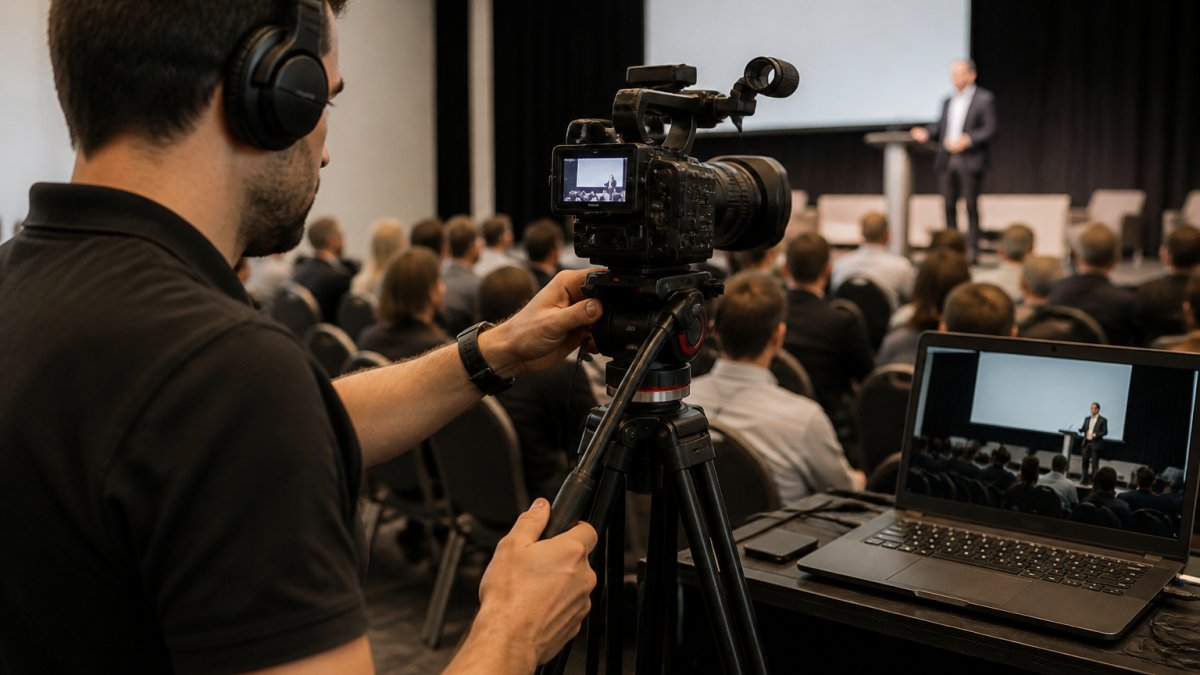
Use three core angles:
- Centre stage: the main speaker, framed from the waist up
- Side profile: a second angle to cut to during long segments
- Audience: wide shots for reactions and Q&A
Cut between angles on natural pauses. Fast cuts feel frantic. Slow cuts feel dull. Aim for a change every 10 to 20 seconds.
Positioning Tripods and Mounts
Set tripods at chest height or higher: low angles make speakers look imposing, high angles make them look small. Lock every leg and mark the floor.
Keep camera feeds and cables out of walkways. Tape down every loose cable.
Step 4: Build a Virtual Town Hall Production Checklist
A virtual town hall production checklist keeps a live event from unravelling. Build it around roles, not tasks, and around the format: a host, one or two presenters, a moderated Q&A, and a mixed in-room and remote audience.
Assign one person to each of these:
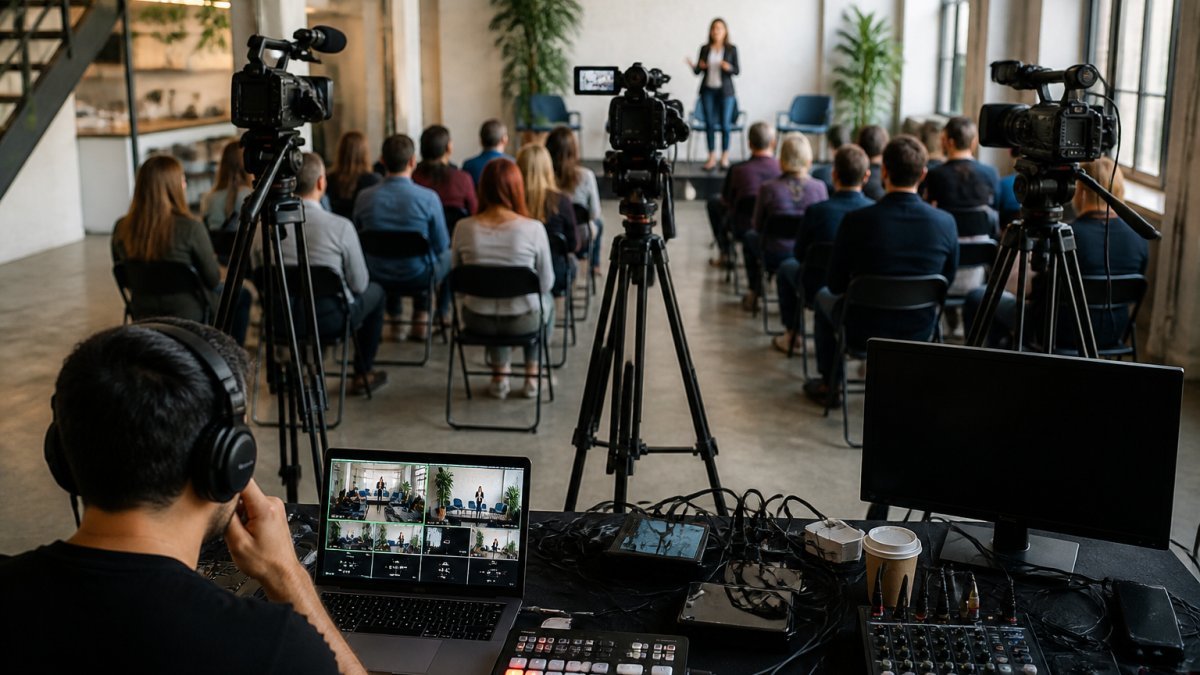
- Director, who calls the camera cuts and owns the run sheet
- Switcher operator, who follows those calls
- Audio lead, who watches levels and mutes
On a two-camera setup, one person can combine director and switcher. Once you add a third camera, a remote presenter feed and a moderated Q&A, split the roles, commonly four people: director/switcher, audio, moderator, and support watching remote connections.
The Town Hall Run Sheet
Write a run sheet with timecode, camera and audio columns. It should read like a script, not a to-do list. A typical 45-minute town hall:
- 0:00-0:03 Host opens on the wide camera, then cuts to a tighter frame
- 0:03-0:20 Presenter segment, cutting between centre stage and side profile every 10 to 20 seconds
- 0:20-0:35 Moderated Q&A, with the moderator on camera when introducing each question
Mark every camera move and audio change on the run sheet. If the director improvises, the cuts lag the conversation.
Handling Moderated Q&A
Q&A is where most town halls go wrong on camera. The audience cannot see who is asking, the speaker cannot hear the question, and the switcher operator has no shot ready.
- Give the moderator a roving handheld or lapel microphone and keep them on a dedicated camera angle
- Have the moderator repeat each question before the presenter answers it, so remote viewers hear it clearly
- For in-room questions, cut to a wide shot of the room while the question is asked, then cut back to the presenter for the answer
Integrating Remote Speakers and a Hybrid Audience
Remote presenters join through a video conferencing platform and arrive at your switcher as a camera feed. Treat that feed as a camera, not a separate event.
- Ask remote speakers to join at least 15 minutes early for a sound and framing check
- Have them use a wired connection and a headset, not laptop speakers and a built-in microphone
- Frame remote speakers so their eyeline sits near the camera, not looking down at a screen
For a hybrid audience, run Q&A through a single moderation queue so in-room and remote questions are handled in the same order. If remote attendees can only ask in chat, say so at the start.
Rehearse the Q&A handoff specifically. The moment the moderator hands to a remote speaker is the most common point of failure in a hybrid town hall, and it is the moment a dry run will expose.
Then list the technical steps in order: power on, connect feeds, set white balance, check audio, test the stream, test the remote speaker feed, test the Q&A handoff, go live.
The single biggest cause of a poor town hall is unclear roles. The second biggest is a run sheet that ignores the Q&A and the remote speakers. When everyone knows their job and the format is scripted, the technology becomes the easy part.
Step 5: Set Up Secure Town Hall Live Streaming
Secure town hall live streaming means controlling who can watch, who can speak, and what gets recorded. For internal meetings, that control matters more than picture quality.
Start with access: use a registration link or single sign-on gate so only invited staff can join, and never publish the stream link publicly.
Privacy, Consent and Audience Camera Policies
Tell attendees up front if the session is being recorded. Under the Privacy Act 1988, organisations must handle personal information, including images and recordings, responsibly. Check the Office of the Australian Information Commissioner guidance on privacy for how this applies to your recording and storage.
Set a clear audience camera policy:
- Cameras off by default for large meetings
- Cameras on only for speakers and panellists
- No recording of the audience without notice
For hybrid events, remote speakers join through video conferencing and appear as a camera feed in your switcher. Test their connection early.
Step 6: Test the Setup Before You Go Live
Test the setup before you go live, every time. A full rehearsal catches problems that only appear under load, and a town hall has more moving parts than a standard stream because of remote speakers and Q&A.
Run a full dry run at least a day before, then a short version an hour before the event.
- Check every camera feed and every cut on the run sheet
- Check audio from every microphone, including the roving Q&A mic
- Check the remote speaker feed, including a simulated drop and reconnect
Network, Latency and Reliability Planning
A live town hall fails in front of the whole organisation, so plan for the network to fail and decide now how you will recover.
- Use a wired connection for the streaming machine, never Wi-Fi
- Budget for a stable upload speed with headroom above your stream bitrate; a 1080p stream typically needs around 5-8 Mbps upload, so provision at least double that on the primary link
- Keep a second internet path ready, such as a bonded connection or a mobile hotspot on a separate carrier, and know how to switch to it
The Australian Cyber Security Centre publishes guidance on securing live services that is worth reviewing for high-stakes meetings.
Accessibility and Inclusive Viewing
A town hall reaches staff who may be deaf or hard of hearing, who use screen readers, or who watch on a phone in a noisy room. Build accessibility into the test, not the afterthought.
- Turn on live captions in your streaming or meeting platform and check them against the speaker’s actual words during the dry run
- If you are using a sign-language interpreter, place them on a dedicated camera angle with a plain background and frame them from the waist up so their hands stay in shot
- Keep slides readable on a phone: large text, high contrast, and no dense paragraphs
Privacy, Consent and Recording Notices
Tell attendees up front if the session is being recorded, and tell them where the recording will be stored and who can access it. Under the Privacy Act 1988, organisations must handle personal information, including images and recordings, responsibly. Check the Office of the Australian Information Commissioner guidance on privacy for how this applies to your recording and storage.
- Cameras off by default for large meetings
- Cameras on only for speakers and panellists
- No recording of the audience without notice
Record every camera individually as well as the switched feed. Individual camera recordings give your video editor clean material for post-production if a cut goes wrong, and they let you re-cut the Q&A for staff who could not attend live.
Do not treat the rehearsal as a formality. The failures that end a town hall, a dropped remote speaker, a dead microphone, a saturated upload link, almost always show up in a dry run first.
Common Mistakes to Avoid
The most common mistakes in a multi-camera town hall are all avoidable with planning. Most come down to skipping the boring steps.
Watch for these:
- Using Wi-Fi for the main stream instead of a wired link
- Forgetting to set white balance, so colours shift between cameras
- Running audio through the camera instead of a dedicated mixer
A common mistake is treating the stream as the only output.
Getting every camera, cable and connection right takes time, and a single weak link can drop your stream in front of your whole organisation.
Frequently Asked Questions
How many cameras do you need for a virtual town hall?
Most virtual town hall setups work well with three cameras: one wide shot covering the stage or panel, one locked on the main speaker, and one roving or fixed camera for audience reactions. For smaller internal updates, two cameras are often enough. If you are streaming to a large hybrid audience with remote speakers, add a fourth camera or feed dedicated to remote presenters so viewers can see them clearly when they speak.
How do you switch between cameras during a live stream?
Use a video switcher, either hardware or software, to cut between camera feeds. Hardware switchers give you physical buttons and lower latency, while software switchers run on a laptop and offer more layout options. Assign cut hotkeys for each camera so you can switch quickly without looking away from the program monitor. Practice your switching sequence during rehearsal so transitions feel natural and you avoid cutting to a camera that is still being repositioned.
How can you make a virtual town hall accessible to remote attendees?
Enable live captions or subtitles so viewers who are deaf or hard of hearing can follow along, and provide a transcript after the event. Use a platform that supports screen reader compatibility and keyboard navigation. Offer a dial-in audio option for attendees with limited internet. Share slides and key documents in advance. If you are taking questions, provide both a text chat channel and a voice option so people can participate in the way that suits them.
How do you test a multi-camera setup before a virtual town hall?
Run a full rehearsal at least a day before the event using the same cameras, switcher, internet connection and streaming platform you will use live. Check that every camera feed appears correctly, audio levels are balanced, captions are working and the stream reaches remote viewers on both desktop and mobile. Test your backup internet or bonding solution. Record a short segment and review it for white balance, framing and sync issues. Fix anything that looks or sounds wrong before the real event.