
Table of Contents
- Start with a Live Stream Troubleshooting Checklist to Isolate the Fault
- Live Stream Buffering Fixes for Online Workshop Playback
- How to Fix Live Stream Audio Problems Presenters and Attendees Face
- Online Workshop Streaming Equipment Checks That Prevent Video Issues
- Separate Presenter-Side and Attendee-Side Live Streaming Video Issues
- Prevent Live Streaming Video Issues with Pre-Event Testing and Fallbacks
- Frequently Asked Questions
Last Updated: October 12, 2026
Start with a Live Stream Troubleshooting Checklist to Isolate the Fault
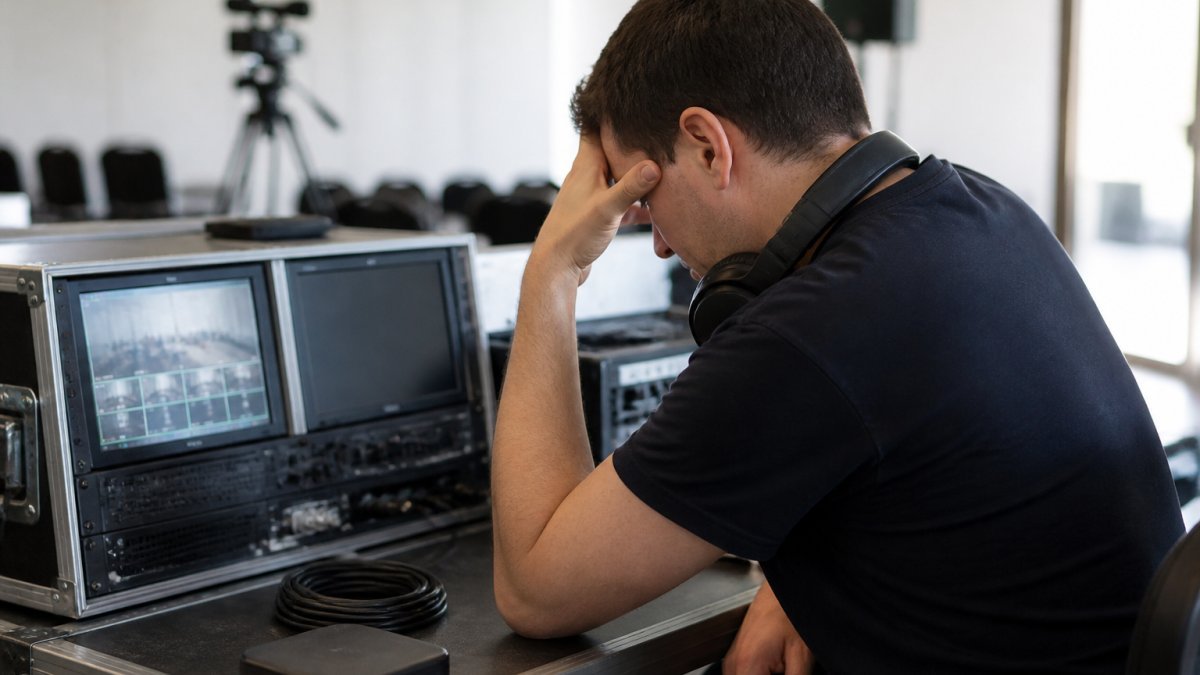
Most live streaming video issues for online workshops come down to one of four things: the network, the browser, the hardware, or the platform. A live stream troubleshooting checklist is a short, ordered set of checks that tells you which of those four is failing before you touch anything else.
Here is the checklist we run through, in order:
- Confirm the stream is actually live (check the platform dashboard)
- Test your internet connection and upload speed
- Close other apps eating bandwidth
- Refresh the browser or restart the app
Work top to bottom. Stop at the first fix that works.
The order matters more than the list. Network problems look like hardware problems, and hardware problems look like platform problems, so guessing wastes time. Start with the connection, because it causes the widest range of symptoms.
Run the checklist once before every workshop, even when nothing seems wrong. Faults you catch in a five-minute pre-check never become a mid-session apology.
Live Stream Buffering Fixes for Online Workshop Playback
Buffering is the stream pausing to load more video than it can play in real time. In a workshop, the first question is not “how do I fix buffering” but “who is buffering”, because the fix is completely different depending on whether the pause is on the presenter’s outgoing stream or on one attendee’s screen.
Diagnose first: presenter-side or attendee-side buffering
Ask the room a single question: “Is everyone seeing the pause, or just some of you?”
- Everyone is buffering, the fault is presenter-side. Your upload path, encoder, or platform ingest is the bottleneck. Fix the source.
- One or a few attendees are buffering, the fault is attendee-side. Their download path, device, or browser is the bottleneck. Do not stop the workshop.
- Buffering starts suddenly for everyone at the same moment, suspect platform-side ingest or a regional network event. Check the platform status page before touching your own setup.
This one question cuts diagnosis time in half and stops presenters from restarting a perfectly healthy stream because one participant on a weak connection is stuttering.
Presenter-side buffering fixes
When the outgoing stream is the problem, reduce what you are asking the upload connection to carry:
- Drop the resolution from 1080p to 720p, then to 540p if needed
- Drop the frame rate from 30 fps to 24 fps or 15 fps for slide-heavy sessions
- Switch the encoder from hardware to software (or vice versa) to see which holds steady
- Close background uploads: cloud backups, file sync, OS updates, and other video calls
Test upload speed, not download speed. A live stream sends video out, so upload is the number that matters. A common pattern is a connection that reports a healthy download figure but an unstable upload, the stream buffers no matter how fast the download looks. Run a sustained upload test for at least ten minutes rather than trusting a single reading.
Attendee-side buffering fixes
When only some participants are affected, give them a short, self-service script rather than pausing the session:
- Switch the player quality setting down one step (for example, from auto to 720p or 480p)
- Close other tabs, downloads, and streaming apps on their device
- Move closer to their router, or switch from Wi-Fi to a wired connection if available
- Try a different browser, or the platform’s desktop or mobile app instead of the browser
Why bandwidth is shared, not owned
Bandwidth is a shared resource. When ten people in one office are on video calls, your workshop competes with all of them, and congestion shows up as buffering first, then stuttering, then a full stream interruption. The same is true on a home connection shared with a household streaming service. Reducing your own bitrate is often faster than waiting for the network to clear.
If buffering only appears at a predictable time, say, the top of the hour, suspect a scheduled backup, sync, or update on the presenter’s machine rather than the internet connection itself.
How to Fix Live Stream Audio Problems Presenters and Attendees Face
Audio faults are more common than video faults and harder to diagnose, because the cause is often outside the volume slider. Learning how to fix live stream audio problems means checking the whole path, not just turning things up.
Common audio issues and their causes:
| Symptom | Likely cause | Fix |
|---|---|---|
| Echo on the call | Two devices in one room both open | Mute one device or move it away |
| Attendees can’t hear presenter | Wrong microphone selected | Re-select the input in settings |
| Presenter can’t hear attendees | Output device muted or wrong | Check speaker selection and system mute |
| Crackling or dropouts | Weak Wi-Fi or a failing cable | Switch to wired audio or replace the cable |
| Volume too low at source | Mic gain set low | Raise input gain, not just playback volume |
Audio echo is the one presenters miss most. If a laptop and a phone are both in the same room with a mic open, the platform hears itself twice.
Never troubleshoot audio by raising every volume to maximum. Boosting a bad signal adds distortion and echo, and it hides the real fault. Fix the source first.
Online Workshop Streaming Equipment Checks That Prevent Video Issues
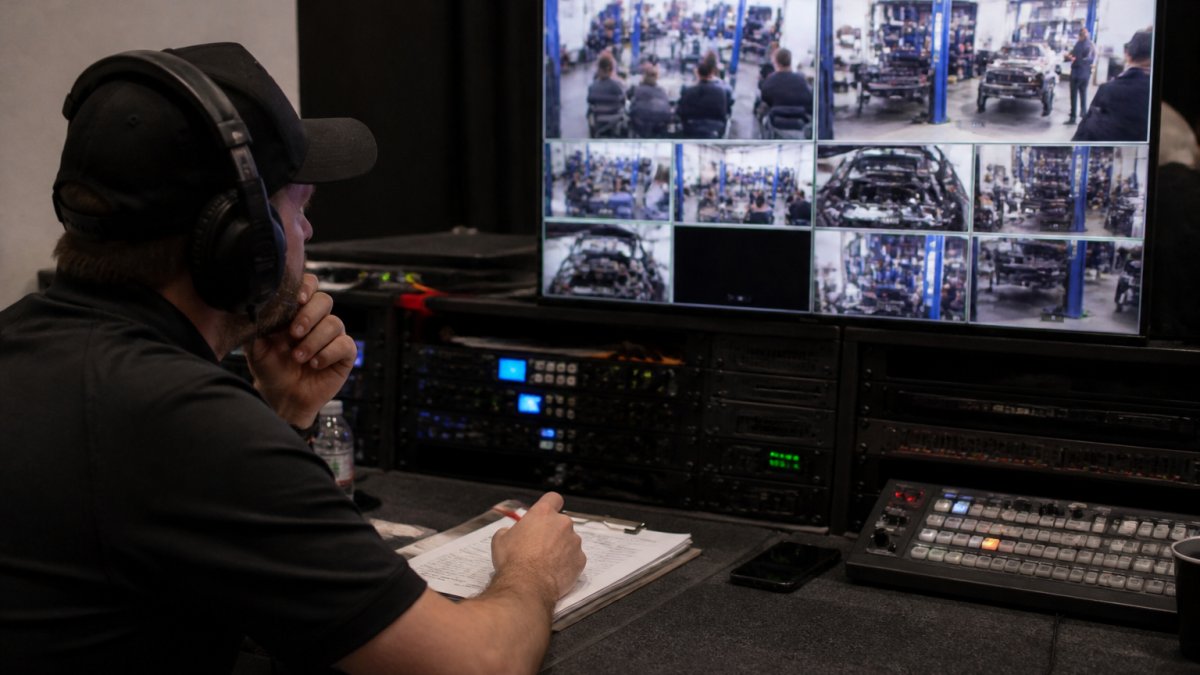
Equipment faults cause the video issues that look most dramatic: a frozen frame, a black screen, or a camera that simply will not appear. Most of them are caught by checking the physical chain before the session, but the more useful skill is knowing which part of the chain to check first, and whether the fault is on the presenter’s side or an attendee’s side.
A platform-agnostic equipment decision tree
Work through this in order. Stop at the first branch that explains the symptom.
- Is the camera detected at all? Open the operating system’s camera settings or the platform’s device list. If the camera does not appear, the fault is below the platform: cable, port, driver, or the camera itself.
- Does the camera appear but show black? Another app may be holding the camera. Close other video apps, then reselect the device.
- Does the camera work in one app but not the platform? The fault is browser permissions or the platform’s device selection, not the hardware.
- Does the camera work for the presenter but not for one attendee? The fault is attendee-side: their device, browser, or permissions. Do not touch the presenter’s kit.
- Does the video freeze for everyone at once? Suspect the encoder, the upload path, or the platform, not the camera.
This tree works regardless of which platform you use, because it isolates network, device, browser, and platform causes in a fixed order rather than guessing.
Presenter-side equipment checks
Run these before every session:
- Unplug and reseat every HDMI cable, then check the port for bent pins
- Confirm the camera is selected as the video input, not a virtual background or a disconnected device
- Test the microphone at speaking distance, not up close
- Check that the capture card or switcher shows a signal light
- Verify the device has enough free storage and is not overheating
- Confirm the correct camera is selected when more than one is plugged in
Cables fail more than cameras do. A loose HDMI connection produces flickering or a dropped signal that looks like a software crash. Reseating the cable takes seconds and rules out the most common hardware cause. A failing cable can also work intermittently, fine in the test, dead at the start of the session, so keep a spare.
Attendee-side equipment checks
When one participant cannot see or hear, send them this short list rather than troubleshooting on their behalf:
- Confirm the correct camera and microphone are selected in their browser or app
- Grant camera and microphone permission if the browser is blocking them
- Close other apps that may be holding the camera
- Try a different browser or the platform’s app
Do not ask an attendee to reinstall drivers or change system settings mid-session. Give them the two-minute checks above; if those fail, move them to an audio-only or chat fallback and continue the workshop.
Keep a spare kit ready
The cheapest insurance against equipment failure is a second path: a spare USB camera, a spare headset, a spare HDMI cable, and a charged phone that can act as a hotspot and a backup camera.
Separate Presenter-Side and Attendee-Side Live Streaming Video Issues
The single most useful troubleshooting habit is asking one question: does the problem affect everyone, or just one side?
Presenter-side faults affect the outgoing stream. If the presenter’s video freezes for everyone, the fault is at the source: their connection, camera, or software.
Attendee-side faults affect one viewer.
| Fault location | Who sees it | Where to look |
|---|---|---|
| Presenter-side | Everyone | Upload speed, camera, encoder, HDMI |
| Attendee-side | One or a few viewers | Their Wi-Fi, device, browser, school filter |
| Platform-side | Everyone, suddenly | Status page, support escalation |
This split also changes what you say in the moment. For a presenter-side fault, pause and fix the source.
If only some attendees are affected, never stop the workshop. Fix the source only when the fault is presenter-side.
Prevent Live Streaming Video Issues with Pre-Event Testing and Fallbacks
The best troubleshooting is the kind you never have to do.
Build these into your routine:
- Run a full test stream at the same time of day as the event
- Test from the actual venue or network, not a different one
- Confirm upload speed holds steady for at least ten minutes
- Record a short test clip and play it back to check audio and video
A fallback plan is what separates a minor glitch from a lost session.
For events where the stakes are high, a managed service removes most of this work.
Accessibility matters during an outage too. If the stream drops, attendees who rely on captions or audio description lose more than everyone else.
Frequently Asked Questions
Why does my live stream keep cutting out during an online workshop?
Streams usually cut out because of unstable upload bandwidth, network congestion, or a browser that has lost its connection to the platform. Run a speed test before the session and check how many devices are sharing the same network. If the presenter is on Wi-Fi, switch to a wired connection. For workshops where a dropout would derail the whole session, a managed provider can help mitigate that risk.
What should I check if workshop attendees cannot hear the presenter?
Start at the source: confirm the correct microphone is selected in the streaming software and that the input level is moving when someone speaks. Then check the attendee side, because the problem is often their device muted, the wrong output speaker selected, or a browser tab muted. Ask one attendee to test with headphones. If audio is fine for most people, the fault is on the attendee side, not the presenter’s equipment.
How do I troubleshoot buffering during a live workshop?
Buffering means the viewer’s connection cannot keep up with the video stream. Ask affected attendees to lower the stream resolution, close other bandwidth-heavy applications, and refresh the browser. On the presenter side, reduce the outgoing bitrate to match the lowest common connection speed among your audience. If buffering affects most viewers at once, the issue is usually the presenter’s upload speed or network congestion, not individual devices.
What should I do if a live stream disconnects during an online workshop?
Have a fallback ready before the event starts. Keep a phone dial-in or audio-only bridge open so the session can continue while video is restored, and send attendees a catch-up or replay link once the recording is available. A provider that records every stream and supplies the file at no extra cost can help ensure that a brief interruption does not result in lost content for training or compliance purposes.
Live streaming video issues for online workshops are almost always diagnosable, and almost always preventable. The challenge is doing both under pressure, mid-session, when attendees are watching. Webcasting Livestream handles that pressure for you with HD streaming across all devices, complete recordings you own, and fail-safe procedures built to keep the stream up. Get a quote from Webcasting Livestream and run your next workshop without wondering whether the video will hold.