

Table of Contents
- Why HD Streaming Fails on Mobile Devices
- Check Your Network Bandwidth and Connection Stability
- Minimum Upload Speed for 1080p Streaming
- Optimise Mobile Device Settings for HD Streaming
- How to Fix Buffering on Mobile Streams
- Mobile Live Streaming Best Practices
- Address Carrier-Level Throttling and Regional Limitations
- Frequently Asked Questions
Last Updated: September 28, 2026
Why HD Streaming Fails on Mobile Devices
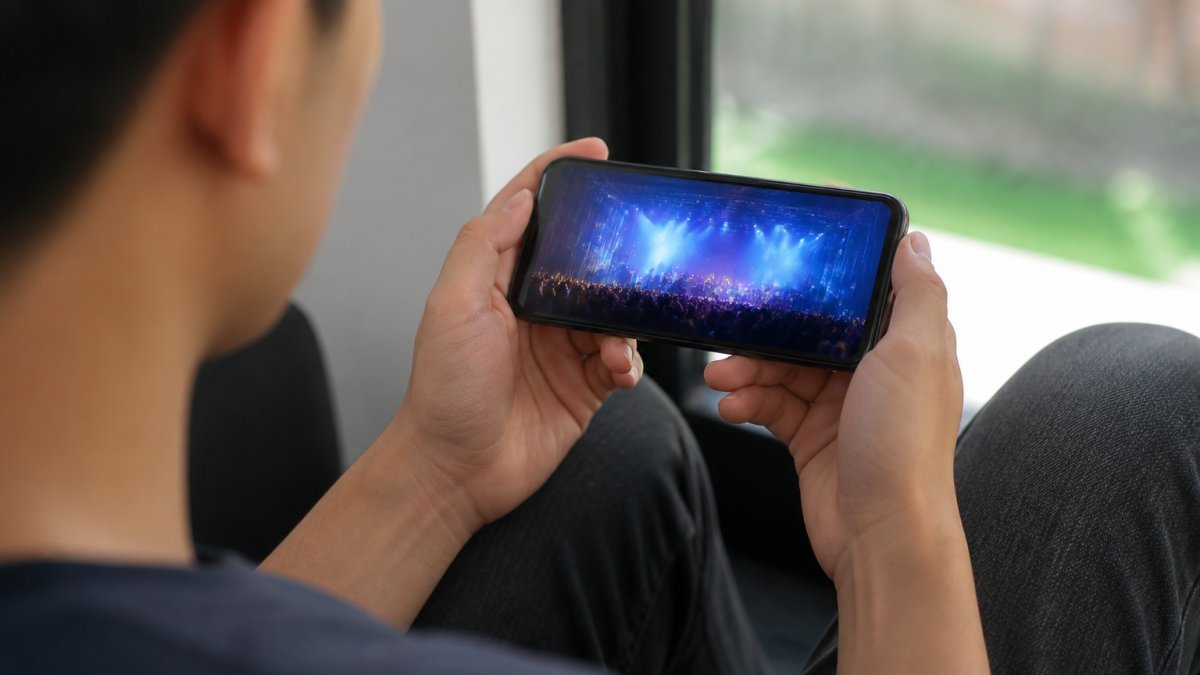
Mobile streaming looks crisp on your phone’s screen in theory. In practice, it often buffers, pixelates, or drops entirely. The problem isn’t usually your device, it’s the gap between what your network can deliver and what HD streaming demands.
Ensure HD streaming on mobile devices requires understanding three layers: your connection’s actual speed, your device’s settings, and the streaming app’s adaptive response. Most people ignore at least one of these, which is why they end up watching a spinning wheel instead of their event.
The bandwidth needed for smooth 1080p playback is much higher than many assume. Add network congestion, signal fluctuations, and background apps consuming data, and your stream collapses.
The single biggest mistake is assuming your internet speed is consistent. Mobile networks fluctuate constantly. Test your connection at the exact time and location where you’ll stream, not just once in your office.
Check Your Network Bandwidth and Connection Stability
Before tweaking any settings, measure what you’re actually working with. Your internet provider’s advertised speed and your real-world performance are often very different.
Run a speed test to measure download and upload speeds
Download speed determines how fast content arrives. Upload speed matters if you’re streaming from a mobile device. For HD streaming on mobile devices, you need:
- 1080p playback: minimum 5 Mbps download
- 720p playback: minimum 2.5 Mbps download
- Live streaming from your phone: minimum 3 Mbps upload
Monitor signal strength and latency
Signal strength tells you how reliably your connection will hold. Weak signals drop packets, forcing retransmission and causing jitter, the variation in latency that makes video stutter.
- iOS: Settings > Cellular > Cellular Data Options > Signal Strength
- Android: Settings > About Phone > Status > Signal Strength
Latency matters more than raw speed for smooth streaming. A 10 Mbps connection with 20ms latency beats a 20 Mbps connection with 100ms latency every time.
Minimum Upload Speed for 1080p Streaming
If you’re broadcasting live from your phone, upload speed is your bottleneck. Playback speed and upload speed are completely separate, you can download at 50 Mbps while uploading at 1 Mbps.
Understanding bitrate requirements for different resolutions
Bitrate is the amount of data your stream consumes per second. Higher resolution requires higher bitrate. Here’s what each resolution needs:
- 480p: 1.5-2.5 Mbps
- 720p: 2.5-4 Mbps
- 1080p: 4-8 Mbps
- UHD (4K): 15-25 Mbps
Adaptive bitrate streaming and automatic quality adjustment
Adaptive bitrate technology solves this automatically. Your streaming app monitors your connection and adjusts video quality in real time. If bandwidth drops, resolution lowers. When bandwidth recovers, quality improves.
Optimise Mobile Device Settings for HD Streaming
Your phone’s default settings often prioritize battery life and data usage over streaming quality. Changing a few options unlocks better performance.
Enable data saver mode strategically
Data saver mode reduces video quality to save bandwidth. It’s useful on metered connections but actively harms streaming quality on unlimited plans.
Check where you have data saver enabled:
- iOS: Settings > Cellular > Cellular Data Options > Low Data Mode (toggle off for streaming)
- Android: Settings > Network & Internet > Mobile Network > Data Saver (turn off)
Adjust video quality settings in your streaming app
Inside your streaming app, quality settings override device-level controls. Open the app’s settings menu and look for video quality or playback options.
Most apps offer these choices:
- Auto: Adaptive bitrate (recommended for mobile)
- High: 1080p (use only on strong WiFi)
- Medium: 720p (best for mobile networks)
- Low: 480p (fallback when bandwidth is poor)
Leaving quality set to “High” or “1080p” on a mobile network is the fastest way to trigger buffering. Adaptive mode prevents this by dropping quality before the buffer empties.
How to Fix Buffering on Mobile Streams
Buffering happens when your device can’t download the next video chunk before playback catches up. The fix depends on whether the problem is network-side or device-side.
Reduce network congestion and packet loss
Network congestion occurs when too many devices share the same bandwidth. Your household WiFi, neighbouring networks, and cellular tower load all affect your speed.
- On a computer: Open Command Prompt (Windows) or Terminal (Mac) and type
ping 8.8.8.8 - Look for “0% packet loss.” Anything above 1% indicates connection instability.
Close background apps and disable bandwidth-heavy processes
Background apps consume bandwidth silently. Cloud sync, auto-updates, and streaming services running in the background steal data from your video stream.
Before streaming, close everything except your streaming app:
- Stop cloud backup (Google Drive, OneDrive, iCloud)
- Disable auto-update for apps
- Close email and social media apps
- Stop any torrent or file-sharing apps
| Task | Impact on Streaming | Priority |
|---|---|---|
| Close background apps | Frees 1-3 Mbps | High |
| Disable cloud sync | Frees 0.5-1 Mbps | Medium |
| Stop auto-updates | Reduces latency spikes | Medium |
| Disable WiFi calling | Reduces jitter | Low |
Mobile Live Streaming Best Practices
If you’re broadcasting from your mobile device rather than watching, different rules apply. Upload speed becomes the limiting factor.
Position your device for optimal signal reception
Signal strength drops dramatically based on position. Walls, metal objects, and distance from the router all weaken your connection.
For live streaming from your phone:
- Position your device in a line of sight to your router or cellular tower
- Avoid thick walls between you and the router
- Hold your phone away from your body, your hand and torso block signals
- Use an external antenna if available
Manage battery and thermal performance during streams
Live streaming drains battery fast and generates heat. Overheating throttles your phone’s performance, which reduces streaming quality.
Before streaming:
- Close all background apps
- Enable low-power mode (if it doesn’t reduce streaming quality)
- Use a phone stand or mount to reduce hand contact (your hand traps heat)
- Stream in a cool environment
- Consider using a portable phone cooler for long broadcasts
Plug your phone into power during live streams. Battery anxiety causes people to enable power-saving modes mid-broadcast, which tanks your bitrate and kills your stream quality.
Address Carrier-Level Throttling and Regional Limitations
Carrier-level throttling is one of the most difficult streaming obstacles to diagnose because it happens transparently at the network layer. Your connection may appear fast in a speed test, yet video streams fail consistently. Understanding how to detect and work around throttling is essential for reliable HD streaming on mobile devices.
Verify whether your carrier is throttling video traffic
To determine if throttling is affecting your streams:
Run a speed test through a VPN tunnel. Download a VPN app (ExpressVPN, NordVPN, or Mullvad are common choices), connect to a server, then run your speed test again. Compare the results to your unencrypted speed test.
- If VPN speed is significantly higher (more than 30% faster), your carrier is likely throttling unencrypted video traffic.
- If speeds are similar, throttling is not the issue; focus on network congestion or device settings instead.
Understand the VPN trade-off: latency versus throttling bypass
While VPN can bypass throttling, it introduces latency overhead that may harm streaming stability. VPNs encrypt all traffic and route it through a remote server, adding 10-50 milliseconds of latency depending on server distance and load.
- Open Command Prompt (Windows) or Terminal (macOS/Linux)
- Type
ping 8.8.8.8 -c 20(macOS/Linux) orping 8.8.8.8 -n 20(Windows) - Note the minimum, average, and maximum latency values
- Disconnect VPN and repeat
Escalate to a higher-priority plan or switch carriers
Most carriers offer tiered plans with different video prioritisation levels. Budget plans (often $20-40 per month) have video deprioritised during congestion. Premium or “unlimited” plans (typically $60-100+ per month) receive higher priority.
- Upgrade to a higher-tier plan with video prioritisation
- Switch to a carrier with less aggressive throttling (regional carriers often have more lenient policies than major networks)
- Use WiFi calling or WiFi-based apps (WhatsApp, Viber) instead of cellular data when possible
VPN can bypass throttling but adds latency. Test both speed and jitter impact before relying on VPN for live events. For on-demand content, VPN’s bandwidth gain usually outweighs latency cost. For live sports and events, verify jitter increase first.
Frequently Asked Questions
What is the minimum upload speed for 1080p streaming on mobile?
For stable 1080p streaming, you typically need an upload speed of at least 5 Mbps, though 8-10 Mbps provides a comfortable buffer for network fluctuations. If your connection drops below 4 Mbps, adaptive bitrate streaming will automatically reduce your resolution to maintain a smooth stream without buffering. Real-world conditions vary; test your actual speeds using a mobile speed test before your live event.
Why does my HD stream automatically drop to low quality on mobile?
Adaptive bitrate streaming detects network congestion, latency spikes, or packet loss and reduces resolution to prevent buffering. This happens when your cellular network experiences throttling, interference, or heavy load. Check your signal strength, close background apps consuming bandwidth, and verify your carrier isn’t applying throttling during peak hours. Moving closer to a WiFi router or switching networks may restore HD quality.
How do I fix buffering on mobile streams?
Start by closing all background apps, disabling auto-play video in social media, and enabling data saver mode if your connection is weak. Run a speed test to confirm you meet minimum bandwidth requirements. If buffering persists, reduce the video resolution in your streaming app settings, move to an area with stronger signal, or switch to WiFi. Packet loss and jitter from network congestion are common culprits; restarting your device or modem can help stabilise the connection.
Can I stream HD video on mobile data, or do I need WiFi?
You can stream HD on mobile data if your cellular network provides sufficient bandwidth and stability. However, regional coverage varies significantly; metro areas typically offer faster, more reliable mobile data than regional locations. WiFi is generally more stable for HD streaming because it avoids carrier-level throttling and network congestion. If you’re in a regional area or experiencing drops, WiFi is the safer choice. Always test your connection beforehand.