
Table of Contents
- Tip 1: Get the Technical Requirements for Hybrid Events Right Before You Book Anything
- Tip 2: Treat Audio as the Make-or-Break Element of Hybrid Conference Technology
- Tip 3: Choose Hybrid Event Streaming Solutions That Match Your Room and Your Audience
- Tip 4: Camera Framing and Display Visibility That Keep Remote Participants in the Room
- Tip 5: Build a Tech Check and Troubleshooting Routine You Actually Run
- Accessibility, Sustainability and Hardware Longevity: The Setup Decisions Most Teams Skip
- Frequently Asked Questions
Last Updated: September 27, 2026
Tip 1: Get the Technical Requirements for Hybrid Events Right Before You Book Anything
Most hybrid conference failures are locked in weeks before anyone touches a camera: the room, the venue’s internet and the platform decide what is possible on the day. This guide from Webcasting Livestream covers the five decisions that matter most when you set up hybrid conference technology.
Bandwidth, latency and the numbers that decide your setup
Hybrid conference technology is the combination of cameras, microphones, displays, network links and streaming platforms that connect in-room attendees with remote participants in real time. Get the network wrong and everything downstream suffers.
Ask the venue three questions before booking:
- Is the upload speed symmetrical, or is it a consumer-grade connection with a fast download and slow upload?
- Can you reserve bandwidth with a dedicated VLAN so guest Wi-Fi does not compete?
- What is the wired backup, and how fast can it be switched on?
Venues routinely quote download speed as “internet speed”. A 500 Mbps download line can still offer only 20 Mbps upload, which caps you at two or three HD streams. Ask for the upload figure in writing.
Hardware compatibility: USB-C, HDMI and platform interoperability
Platform interoperability is where most room designs quietly fall apart: the camera, display, audio interface and conferencing platform must all agree on how they talk to each other.
| Connection | Best For | Watch Out For |
|---|---|---|
| USB-C | Laptops, all-in-one bars | Cable quality varies; cheap cables drop video |
| HDMI | Fixed runs to displays | Passive runs fail beyond ~5 metres |
| HDBaseT | Long in-wall runs | Needs dedicated hardware at both ends |
| Wireless casting | Guest presenters | Depends entirely on network stability |
Tip 2: Treat Audio as the Make-or-Break Element of Hybrid Conference Technology
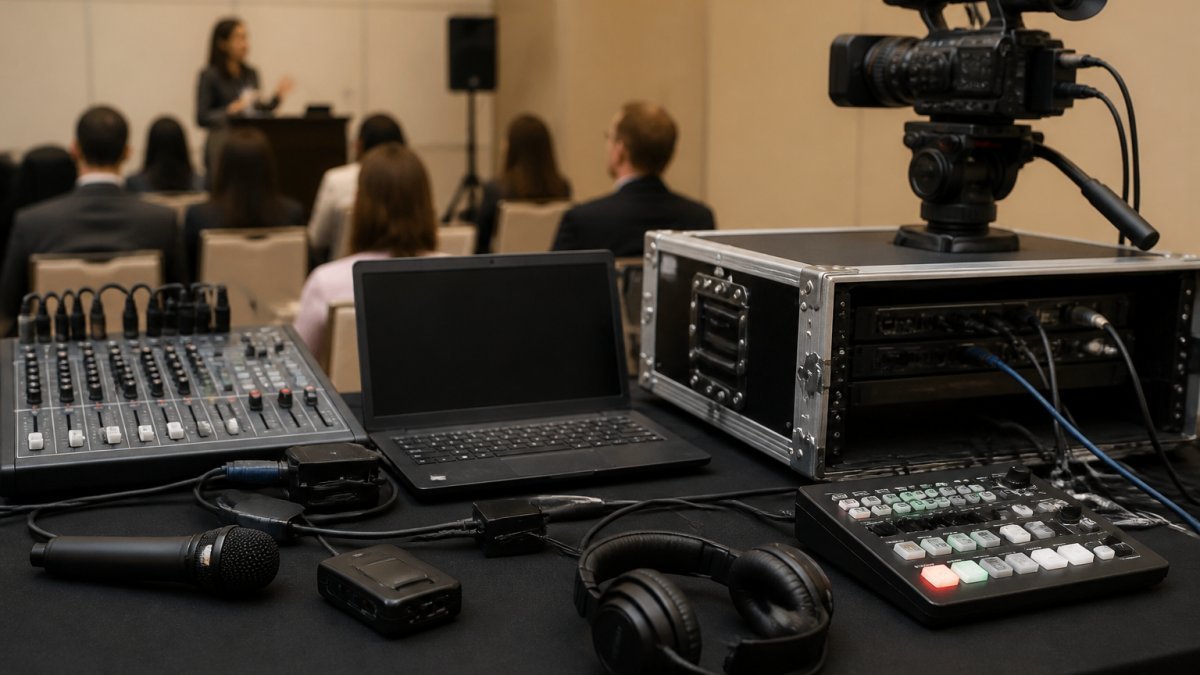
Remote participants forgive soft picture but not bad sound. If they cannot hear the room clearly, the meeting has failed regardless of how sharp the camera looks, which is why audio deserves the largest share of your hybrid conference technology budget.
Microphone pickup range and room coverage
Microphone pickup range determines how far a speaker can sit from a mic and still be heard. A ceiling array typically covers a 6 to 8 metre radius; a table boundary mic covers roughly 3 to 4 metres. Match the mic to the room, not the other way around.
- Beamforming. Array mics steer pickup toward the active talker and reject off-axis noise, suppressing a projector fan or air-conditioning vent behind the speaker.
- Automatic gain control (AGC). AGC lifts quiet voices and pulls back loud ones, but aggressive settings also lift room noise between sentences. Prefer a moderate AGC setting and rely on beamforming for the heavy lifting.
- Echo cancellation and the double-talk problem. Echo cancellers compare what the room mic hears against what the speaker is playing. When an in-room and a remote participant speak at once, a poorly tuned canceller cuts one off. Test double-talk deliberately during setup.
Walk the room with a live audio feed in your ears before the event. Stand where the quietest speaker will sit, turn away from the mic and talk at normal volume. If you cannot hear yourself clearly on the remote feed, neither can your audience.
Acoustic treatment for hybrid rooms
Practical fixes, roughly in order of cost-effectiveness:
- Floor covering. Carpet or a large rug removes one of the two largest reflective planes in the room, usually the biggest improvement per dollar.
- Absorption on facing walls. Acoustic panels on the two walls that face each other break the primary flutter echo. Thickness matters more than surface area for lower frequencies.
- Soft furnishings and a fabric ceiling treatment. Upholstered chairs, curtains and a fabric ceiling baffle absorb mid and high frequencies, where speech intelligibility lives.
- A movable screen behind the presenter. In a room with a full glass wall, a heavy curtain or portable acoustic screen behind the speaker removes the worst first reflection.
- Diffusion rather than absorption where the room is already soft. Bookshelves, irregular surfaces and dedicated diffusers scatter sound instead of absorbing it, keeping the room from sounding dead while taming reflections.
Venues rarely mention acoustic quality in their sales material, and a room that photographs beautifully can be acoustically hostile. Ask to visit at the same time of day as your event and clap once in the empty space before you commit.
If the room cannot be treated, a heritage space, glass atrium or temporary venue, plan around it: use directional microphones, keep presenters close to the mic, add a lapel or handheld for anyone moving, and brief remote participants that the room is live. Directional pickup and proximity do more for intelligibility than any software setting.
Tip 3: Choose Hybrid Event Streaming Solutions That Match Your Room and Your Audience
The best hybrid event streaming solutions match your room size, audience count and tolerance for risk. A small internal town hall and a 5,000-viewer product launch need very different setups.
Wireless connectivity vs cabled reliability
Wireless connectivity is convenient and fragile; cabled reliability is boring and dependable. For anything with a fixed stage or permanent room, run cables and treat wireless as a backup.
Tip 4: Camera Framing and Display Visibility That Keep Remote Participants in the Room
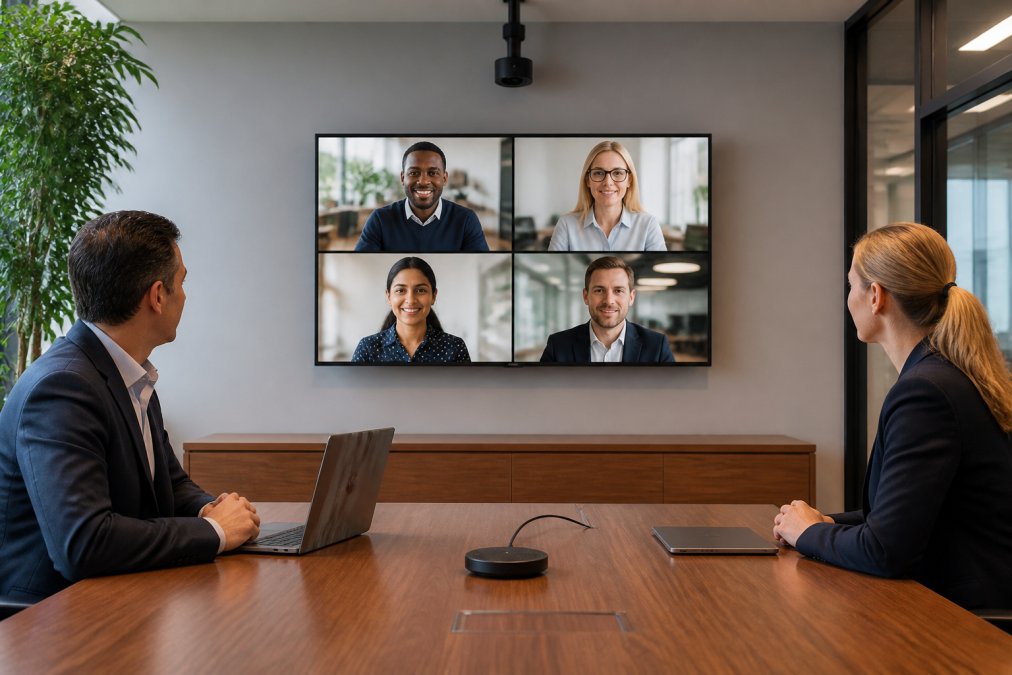
Camera framing decides whether remote participants feel present or excluded. A single wide shot of a long table makes everyone tiny and anonymous; a camera that frames the active speaker keeps remote attendees engaged with the person talking.
Tip 5: Build a Tech Check and Troubleshooting Routine You Actually Run
A tech check is a timed, repeatable sequence that confirms every piece of the setup works before the first attendee arrives. It only helps if you run it every time, including the events you assume will be fine. Standardizing these rehearsals minimizes the risk of human error, a process that becomes even more efficient when integrated with AI event planning tools to streamline your technical workflows.
The 60-minute tech check before doors open
Start one hour before doors. Work through this checklist in order, and do not skip steps because the room “worked last week”.
- Confirm upload speed and latency on the event connection
- Power on cameras, mics and displays; check for firmware prompts
- Test microphone pickup from the furthest seat
- Confirm camera framing on the active speaker and the whole room
- Run a full test call with a remote participant on the actual platform
- Check screen sharing and any digital whiteboard tools
- Verify the recording is capturing video and audio
- Confirm the fallback plan and who triggers it
Troubleshooting common failures under time pressure
Most hybrid failures are not novel, they are a small set of recurring faults. A troubleshooting routine tells you what to check first. Work outside-in: confirm the fault is where you think it is before changing anything.
Keep a one-page troubleshooting card taped inside the room’s equipment rack. Under pressure, nobody reads a manual, they read the card. List the five most likely faults and the first check for each.
Firmware updates, network stability and fallback plans
Firmware updates fix bugs and close security gaps, but never run them on event day. Schedule updates at least a week before, then confirm the devices still behave as expected. Read the release notes first, an update that changes a default setting can quietly break a working room.
The difference between a smooth hybrid event and a stressful one is almost never the equipment. It is whether someone ran the check, tested the fallback and knew who was authorised to switch.
Accessibility, Sustainability and Hardware Longevity: The Setup Decisions Most Teams Skip
Accessibility for remote participants is not a nice-to-have. Live captions, a clear audio feed and a platform that works on older devices all widen who can take part. Check that your platform supports captions and that the audio is clean enough for them to work.
Frequently Asked Questions
What technology is needed for hybrid meetings?
At minimum you need a video conferencing system with a camera that covers the whole room, beamforming microphones with enough pickup range for in-room attendees, a display large enough for remote participants to read shared content, and a network connection with dedicated upload bandwidth. Add USB-C or HDMI connectivity for screen sharing, plus a platform that supports real-time collaboration. For larger events, a managed hybrid event streaming solution handles encoding, redundancy and recording so your team is not troubleshooting mid-session.
How do you ensure equal engagement for remote and in-person attendees?
Assign a facilitator whose only job is monitoring the chat, unmuting remote participants and repeating in-room questions for the stream. Use a digital whiteboard both groups can edit, and give remote speakers the same agenda time as in-room speakers. Camera framing matters too: if the room camera only shows the presenter, remote participants feel like an audience rather than part of the meeting. Meeting equity comes from process, not just hardware.
What are the common technical pitfalls in hybrid event setups?
The most frequent failures are insufficient upload bandwidth when multiple presenters share screens, microphones placed too far from speakers, HDMI or USB-C cables that do not support the required resolution, and firmware that has not been updated before the event. Another common issue is a single point of failure: one laptop, one network path, no backup. Running a full tech check an hour before doors open catches most of these before your audience notices anything.
How does professional webcasting differ from standard video conferencing?
Video conferencing is built for two-way conversation between a handful of people. Professional webcasting is built for one-to-many broadcast, with higher bitrate encoding, redundant network paths, managed audio mixing and recording included. A webcasting provider also runs fail-safe procedures so a dropped connection switches to a backup without the audience seeing it.
How can I improve connectivity and streaming reliability for hybrid conferences?
Book a dedicated wired connection for the broadcast path rather than sharing the venue’s guest Wi-Fi, and test upload speed at the same time of day as your event. Set your encoder to a bitrate the connection can sustain with headroom, not its theoretical maximum. Have a backup path, such as a 5G router or a second line, ready to switch over. Confirm the venue’s network stability in writing before you sign, especially for regional or multi-site events.