
Table of Contents
- What Makes a Perfect Viewing Experience in Live Production
- Essential Components of a Streaming Workflow
- Multi-Camera Live Streaming Setup for Audience Engagement
- Professional Webcast Recording and Archiving Systems
- Live Streaming Production Services: Hardware vs. Software Solutions
- Optimising Capture-to-Post for Scalability
- Delivering Broadcast Quality and Stream Stability
- Common Production Mistakes to Avoid
- Frequently Asked Questions
Last Updated: September 22, 2026
What Makes a Perfect Viewing Experience in Live Production
A perfect viewing experience live production means your audience sees exactly what you intended, no stuttering, audio delays, or dropped frames. At Webcasting Livestream, we’ve managed thousands of events and learned that flawless viewing experience starts with understanding what your audience needs to see.
The viewing experience is about consistency: stable streams, synced audio and video, and sharp images across all devices. This separates professional broadcasts from amateur ones.
According to the Australian Communications and Media Authority’s guidance on broadcast standards, reliable signal delivery and consistent quality across distribution channels form the foundation of professional streaming. Most organisations underestimate how many technical factors must align to achieve this.
Your audience won’t forgive technical problems, they’ll switch off and blame your brand. Building the right viewing experience means eliminating failure variables.
Essential Components of a Streaming Workflow
A streaming workflow is the entire path your video takes from camera to viewer: capture, processing, encoding, transmission, and playback. One weak link breaks the system. Poor camera signal ruins the image. Misconfigured encoders create stuttering. Network bottlenecks cause buffering. Every component must work together.
The essential components are:
- Capture devices (cameras, audio equipment)
- Signal routing (cables, networking hardware)
- Encoding systems (hardware or software that compresses video)
- Content delivery (servers that send the stream to viewers)
- Playback infrastructure (the player and CDN that delivers to end devices)
Camera Consistency and Feed Management
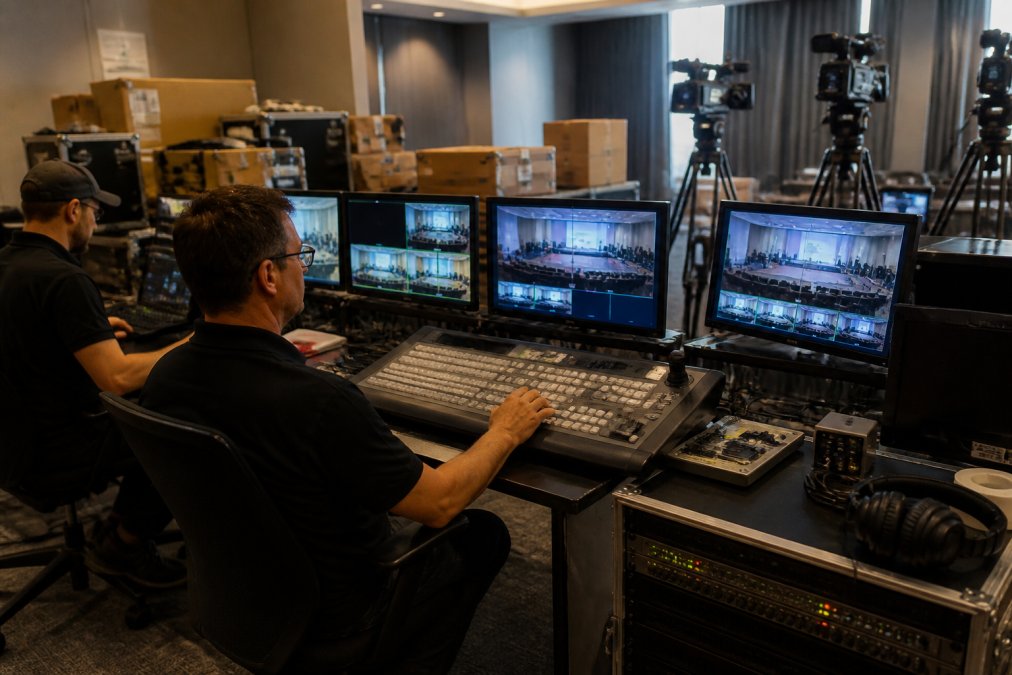
Camera consistency means feeds look identical throughout the broadcast: same colour temperature, exposure, and frame rate. Feed management keeps multiple camera signals organised and stable, monitoring quality and routing to your switcher without losing signal integrity.
Common mistakes happen here:
- Using cameras with different frame rates (one at 25fps, another at 30fps)
- Failing to white-balance cameras before the broadcast
- Running camera cables too close to power lines (causes interference)
- Not monitoring signal levels in real-time
Professional setups use centralised input management systems that monitor every feed continuously, alerting you immediately to signal drops or colour drift.
Audio-Video Synchronisation and Signal Integrity
Audio and video must stay perfectly synchronised, when they drift, lips move before words appear. Signal integrity means video and audio remain clean from capture to delivery; interference, cable damage, or poor routing degrades quality. Maintaining this precise alignment across the entire signal chain serves as the essential foundation for achieving professional audio quality in the subsequent stages of the creative workflow.
Use dedicated audio cables separate from power lines, inspect cables regularly, monitor audio at multiple points, and test synchronisation before every broadcast.
Multi-Camera Live Streaming Setup for Audience Engagement
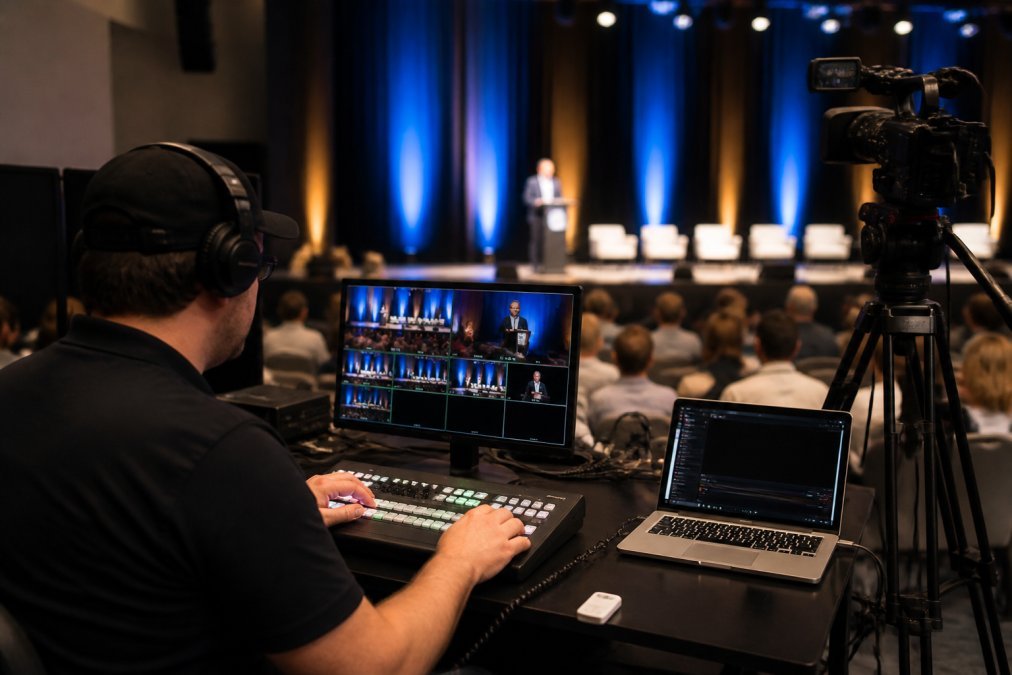
Multi-camera setups provide flexibility, wide shots, close-ups, detail shots, and simultaneous slides and presenters, but introduce complexity requiring switcher operators, camera monitors, and backup systems.
Configuring PTZ Cameras and Input Management
PTZ cameras (pan-tilt-zoom) are remotely controlled, allowing one operator to manage multiple cameras.
Input management ensures your switching system recognises every camera and routes them correctly, with each camera assigned a unique input slot.
Setup steps:
- Connect each PTZ camera to your network
- Assign each camera a unique IP address
- Configure your switcher to recognise each input
- Test camera movement and zoom range
- Set default positions for each camera
- Create switching patterns for common scenarios (speaker shot, wide room shot, slide detail)
PTZ cameras are ideal for solo operators or small crews. One person can manage three or four cameras. For larger productions, you’ll want dedicated camera operators.
Solo Operator vs. Small Crew Configurations
A solo operator runs everything (cameras, audio, switching, monitoring) for simple, predictable events. A small crew (2-4 people) handles complex productions with dedicated roles for cameras, switching, audio, and quality monitoring.
Choose solo operator for tight budgets and simple, predictable events. Choose a small crew for complex events with multiple speakers and angles. Small crews are proactive; solo operators are reactive.
Professional Webcast Recording and Archiving Systems
Recording serves multiple purposes: archiving for missed viewers, generating training and promotional content, and legal protection. Record at both encoder and output for backup.
Checksum Verification and Media Transfer Best Practice
After recording, verify and transfer files safely. Checksum verification confirms files weren’t corrupted, a mathematical value that changes if the file changes, catching corruption.
Record to local storage, calculate checksum, transfer to archive storage, verify checksum after transfer, then delete local copy. This ensures your archive is trustworthy.
At Webcasting Livestream, all recordings are provided at no extra cost. Your content belongs to you. We handle archiving and verification so you don’t have to worry about file integrity.
Live Streaming Production Services: Hardware vs. Software Solutions
Hardware uses dedicated equipment (switchers, encoders, routers); software runs on computers. Each has trade-offs.
Hardware offers reliability, low latency, and easy scaling but costs more upfront and requires space and expertise. Software costs less, offers flexibility, and integrates easily but depends on computer specs and is vulnerable to crashes.
For most organisations, a hybrid approach works best.
Cloud-Based Switching Workflows and Remote Production
Cloud-based switching runs your switcher on a remote server, enabling remote production with distributed teams controlling their parts through cloud interfaces.
Low-Latency NDI Connectivity and Bitrate Optimisation
NDI (Network Device Interface) is a protocol that sends video over standard network cables instead of specialised video cables. This simplifies your infrastructure. Any networked device can send or receive video.
The balance depends on your audience:
- Corporate event with fibre internet: use high bitrate (25-50 Mbps)
- Regional event with variable internet: use medium bitrate (8-15 Mbps)
- Mobile audience: use lower bitrate (3-6 Mbps)
Optimising Capture-to-Post for Scalability
Capture-to-post is the entire journey from recording to final delivery. Optimising this path means building systems that handle growth.
Frame Rate Synchronisation and 4K UHD Support
Frame rate synchronisation ensures all your cameras and systems use the same frame rate. Mixing frame rates creates stuttering and sync issues.
Standard frame rates are:
25fps (PAL standard, common in Australia)
30fps (NTSC standard, common in North America)
50fps or 60fps (high-frame-rate, for smooth motion)
Corporate webinar: 1080p is sufficient
Product launch with large screens: 4K is worth the investment
Archived training content: 1080p balances quality and storage cost
Hybrid Event Technical Challenges and Solutions
Hybrid events have both in-person and remote audiences. This creates unique technical challenges.
Common challenges:
- Audio feedback: Microphones pick up speakers from the venue speakers, creating echo
- Camera positioning: Cameras must frame the stage for remote viewers while not blocking in-person sightlines
- Lighting: Lighting for the in-person audience may not work for cameras
- Interaction: Remote viewers can’t ask questions or participate naturally
- Latency: Remote viewers see the stream delayed, so they’re not watching live with the room
Solutions:
- Use directional microphones pointed at speakers, not the room
- Position cameras high or to the side
- Use professional lighting that works for both in-person and camera
- Build in Q&A tools for remote viewers
- Accept that remote viewers will see a slight delay
Delivering Broadcast Quality and Stream Stability
Broadcast quality means your stream meets professional standards. Consistent colour. Sharp focus. Proper exposure. Clean audio. No glitches.
Visual Fidelity Across Devices and Switching Latency Control
Visual fidelity is how good your image looks. Fidelity depends on resolution, bitrate, and codec choice.
To maintain visual fidelity and low latency:
- Use hardware encoders (more reliable than software)
- Monitor bitrate in real-time
- Test your entire system before the broadcast
- Have backup encoders ready
- Use a CDN that has servers near your audience
Common Production Mistakes to Avoid
Most production failures come from preventable mistakes. Learn from them.
Mistake 1: Ignoring audio until broadcast day
Mistake 2: Not testing your full workflow end-to-end
Mistake 3: Using the wrong frame rate or resolution
Mistake 4: Failing to monitor signal quality in real-time
Mistake 5: No backup systems
Mistake 6: Inadequate bandwidth planning
Mistake 7: Poor communication between team members
Frequently Asked Questions
What are the essential components of a professional live production workflow?
A professional live production workflow requires camera consistency and feed management, audio-video synchronisation, cloud-based or hardware switching systems, and reliable signal integrity. The streaming workflow must handle multi-camera input management, frame rate synchronisation, and low-latency connectivity. Professional webcast recording and archiving systems should verify media integrity through checksum verification. Your production ecosystem must support capture-to-post optimisation to maintain broadcast quality and stream stability throughout the event.
How do I ensure a perfect viewing experience across all devices?
Optimise bitrate and frame rate synchronisation to match your audience’s bandwidth and device capabilities. Use adaptive bitrate streaming to automatically adjust visual fidelity based on viewing conditions. Test your broadcast on mobile phones, tablets, and desktops before going live. Implement redundant encoding pathways to prevent stream interruption. Monitor switching latency and ensure your cloud-based switching workflows prioritise low-latency delivery. HD quality streaming across all devices requires consistent feed management and signal integrity throughout your production ecosystem.
What should I know about multi-camera live streaming setup for complex events?
Multi-camera live streaming setup requires careful input management, whether you’re operating as a solo operator or with a small crew. Configure PTZ cameras with sufficient coverage to eliminate dead zones. Synchronise frame rates and audio-video sync across all cameras before starting your broadcast. Use NDI connectivity for simplified signal routing and reduced latency. Plan your switching workflow in advance, identifying which camera angles match each segment of your event. Test all camera feeds and switching transitions during rehearsal to catch signal integrity issues before your live stream begins.
Why is professional webcast recording and archiving important?
Professional webcast recording and archiving ensures your event content is captured without loss of quality and remains accessible for training, compliance, and on-demand viewing. Implement checksum verification during media transfer to confirm file integrity. Archive your recordings in a secure, accessible format owned by your organisation. This approach supports scalability by allowing you to repurpose event content across multiple channels and timeframes. Recording also provides a failsafe: if live streaming encounters issues, your archived recording preserves the complete event for later distribution.