
Table of Contents
- What Is Professional Live Streaming for Events?
- Why Corporate Event Webcasting Matters for Your Business
- Technical Requirements for Broadcast-Quality Streaming
- Choosing the Right Streaming Platform and RTMP Protocol
- Live Stream Audience Engagement Strategies That Work
- Hybrid Event Technology: Blending In-Person and Virtual Attendance
- DIY Streaming vs. Professional Managed Services
- Recording, Post-Production, and Content Ownership
- Frequently Asked Questions
Last Updated: September 19, 2026
What Is Professional Live Streaming for Events?
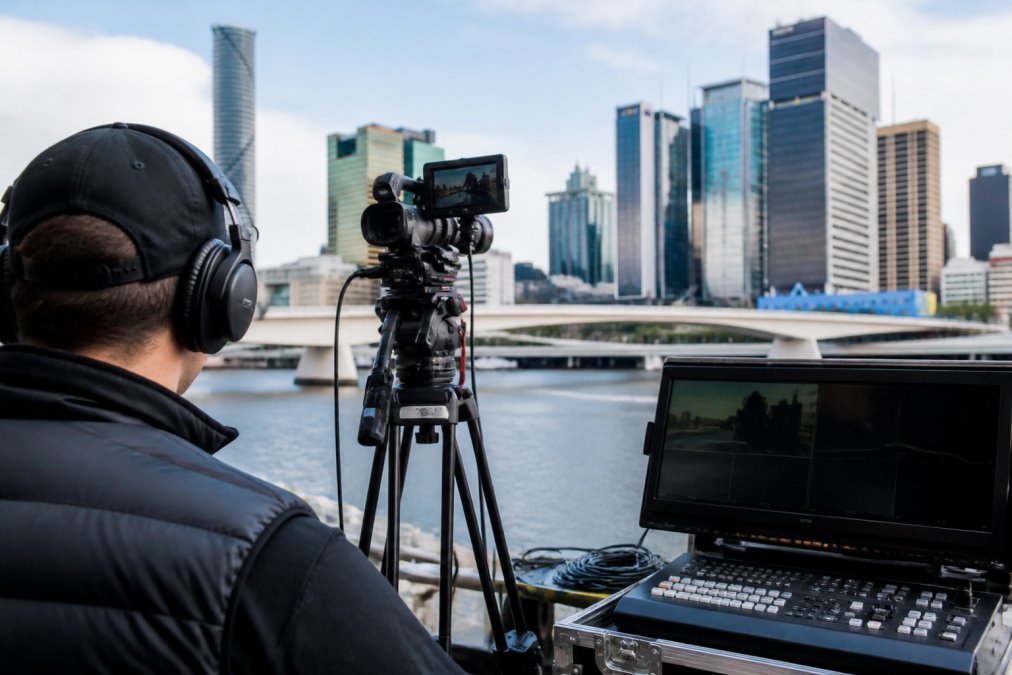
Brisbane live streaming combines multi-camera production, professional encoding, and reliable infrastructure to deliver video and audio in real time across all devices.
A corporate AGM with 2,000 concurrent viewers demands different technical architecture than a small webinar. Professional services deploy fail-safe procedures that guarantee seamless connection.
Event streaming extends reach beyond venue capacity and creates permanent recordings you own for training, marketing, or documentation.
Why Corporate Event Webcasting Matters for Your Business
Corporate event webcasting ensures distributed teams, remote employees, and external stakeholders access critical announcements, product launches, and strategic updates.
A failed stream damages credibility with investors and customers. Professional management handles technical complexity so your team focuses on content and delivery.
Webcast production creates permanent records you own and control for onboarding, compliance training, or marketing.
Most organisations underestimate the value of having recordings. Plan for post-production use from the start: decide who needs access, how long you’ll retain footage, and whether you’ll edit for public release or keep internal versions separate.
Technical Requirements for Broadcast-Quality Streaming
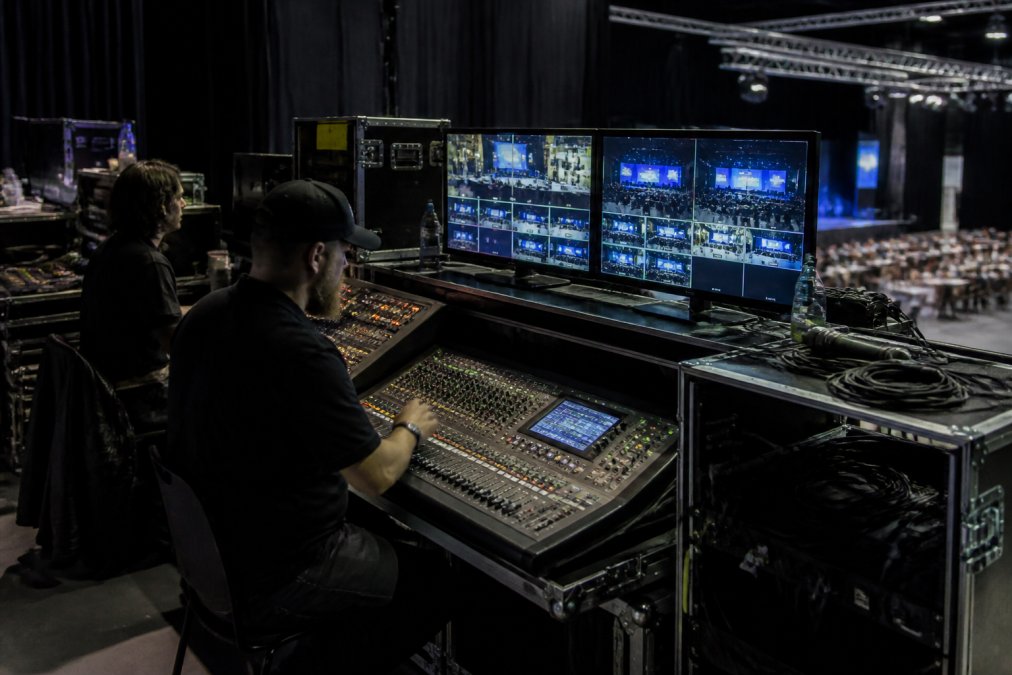
Broadcast-quality streaming requires sufficient internet bandwidth, stable connection protocols, multi-camera coordination, and proper encoding standards that compress video without visible quality loss.
Internet Bandwidth and Connection Stability
Most corporate events require at least 10-25 Mbps upload speed for reliable HD streaming.
Bandwidth Requirements by Event Type:
- Small webinar (single camera, up to 500 viewers): 5-8 Mbps upload
- Corporate conference (2-3 cameras, 500-2,000 viewers): 10-15 Mbps upload
- Multi-camera product launch (4+ cameras, 2,000+ viewers): 20-25 Mbps upload
- Hybrid event with in-venue screens and remote broadcast: 25-40 Mbps upload
If your venue cannot reliably deliver these speeds, a professional service becomes essential.
Testing Your Connection Before the Event:
Do not assume your stated internet speed is your actual upload capacity. Run a speed test at Speedtest by Ookla during the time of day your event will occur. Upload speed often degrades during business hours when multiple users share bandwidth. Test from the exact location where your encoder will be positioned, not from a different room or floor. If your upload speed is below your event’s requirement, contact your internet service provider about upgrading to a business-grade connection with guaranteed bandwidth, or arrange for a professional streaming service to bring redundant connectivity to your venue.
Audio Requirements and Microphone Setup
Microphone Types for Different Venues:
- Lapel microphones (lavalier): Best for single speakers or panellists; clips to clothing and captures voice clearly while rejecting room noise.
- Headset microphones: Ideal for presenters who move around; keeps the microphone at consistent distance from the mouth.
- Boundary microphones (PZM): Suitable for conference tables; captures multiple speakers without requiring individual microphones.
- Handheld microphones: Standard for Q&A sessions; allows audience members to ask questions that remote viewers can hear.
- Ambient microphones: Capture room sound and applause; should be mixed at lower levels to avoid overpowering speaker audio.
Lighting and Camera Setup
Poor lighting is the most common reason streams look unprofessional.
Lighting Setup for Presenters:
- Key light: Position a soft light source (LED panel or diffused tungsten) at 45 degrees to one side of the speaker’s face, approximately 1-1.5 metres away. This is your primary light source.
- Fill light: Place a secondary light on the opposite side at lower intensity to soften shadows created by the key light.
- Back light: Position a light behind the speaker, angled slightly downward, to separate the speaker from the background and add depth.
- Background light: If your background is a wall or banner, light it separately to ensure it is evenly illuminated and does not appear dark or uneven on camera.
Position your primary camera at eye level, approximately 2-3 metres away. For multi-camera setups, use wide shot, medium shot, and close-up angles.
Encoding Settings and Bitrate Selection
Encoding converts raw video into compressed format. Your encoder settings determine the trade-off between video quality and bandwidth consumption.
Common Encoding Profiles:
- H.264 (AVC): The industry standard, widely compatible with all platforms and devices. Requires moderate processing power. Bitrate range: 2,500-6,000 kbps for 1080p at 30 fps.
- H.265 (HEVC): Newer codec offering 40-50% better compression than H.264. Requires more processing power and is not supported by all platforms. Bitrate range: 1,500-3,500 kbps for 1080p at 30 fps.
For most corporate events, H.264 at 1080p, 30 fps, 4,500 kbps is the safe choice. If bandwidth is limited, reduce to 720p or 3,000 kbps.
Test your complete setup (camera, microphone, lighting, encoder, internet connection) at least 48 hours before your event. Stream to a private test link and watch from multiple devices and network conditions. This is your only opportunity to identify and fix problems before your audience is watching.
Backup and Redundancy Checklist
Professional streaming requires redundancy at every critical point: internet connection, encoder, power supply, camera, and microphone.
Choosing the Right Streaming Platform and RTMP Protocol
Your streaming platform choice determines device access, concurrent viewer capacity, security controls, and recording ownership.
Platform Comparison: YouTube, Zoom, Vimeo, and Private RTMP Servers
YouTube Live: Best for public events and large audiences (unlimited concurrent viewers). YouTube owns the video; you can download it but cannot prevent permanent hosting. Access control: public, unlisted, or private. RTMP support: yes. Not suitable for confidential internal communications.
Zoom Webinar: Best for interactive meetings and Q&A (up to 10,000 participants). You own the recording. Built-in polls, Q&A, chat, and breakout rooms. Limited RTMP support.
Decision Framework: Selecting Your Platform
Answer these questions in order to narrow your platform choice:
1. Who is your audience?
- Internal employees only → Zoom or private RTMP.
- Mix of internal and external → Vimeo or private RTMP.
- Public audience, maximum reach → YouTube.
2. How many concurrent viewers do you expect?
- Under 500 → Any platform works.
- 500-5,000 → YouTube, Vimeo, or Zoom (higher tiers).
- Over 5,000 → YouTube or private RTMP with scaled infrastructure.
3. Do you need interactive features (polls, Q&A, chat)?
- Yes, interaction is critical → Zoom.
- No, one-way broadcast is acceptable → YouTube, Vimeo, or private RTMP.
4. How sensitive is the content?
- Public, no confidentiality concerns → YouTube.
- Internal, moderate sensitivity → Zoom or Vimeo (password-protected).
- Highly confidential, compliance-critical → Private RTMP.
5. Do you need to own and control the recording?
- Yes, full control is essential → Vimeo, private RTMP, or Zoom (with local recording).
- Acceptable to have platform host it → YouTube or Vimeo.
6. What is your budget?
- Minimal budget → YouTube (free for public streams).
- Moderate budget → Vimeo.
- Higher budget, maximum control → Private RTMP or managed service.
RTMP Ingest and Encoding Configuration
RTMP (Real-Time Messaging Protocol) is the standard protocol for sending video from your encoder to the streaming platform. Your encoder software (such as OBS Studio, Wirecast, or vMix) connects to the platform’s RTMP ingest server using a server URL and stream key.
RTMP Configuration Steps:
- Log into your streaming platform account and generate a stream key (a unique identifier that authorises your encoder to push video to the platform).
- Copy the RTMP ingest URL (provided by the platform) and the stream key.
- Open your encoder software and navigate to the streaming settings.
- Paste the RTMP URL and stream key into the encoder.
- Configure video bitrate, resolution, and frame rate to match your internet bandwidth and platform requirements.
- Click “Start Streaming” to begin sending video to the platform.
Your platform choice determines reliability and control more than any other factor. A platform optimised for your audience size, content sensitivity, and engagement needs will handle peak loads without degradation; one mismatched to your requirements will fail exactly when it matters most. Test your platform choice with a full-scale rehearsal at least 48 hours before your event.
Live Stream Audience Engagement Strategies That Work
Engagement strategies include live polls, real-time Q&A, chat moderation, and on-screen calls to action that make viewers feel part of the event.
Hybrid Event Technology: Blending In-Person and Virtual Attendance
Hybrid events serve both in-person and remote audiences. In-venue cameras must capture speakers and audience reactions while remote participants see a polished broadcast.
DIY Streaming vs. Professional Managed Services
DIY streaming works for simple events. For AGMs, product launches, and investor presentations, DIY introduces unacceptable risk.
DIY streaming fails most often during high-stakes events: when your CEO is presenting to investors, when attendance is highest, or when technical issues would create the most damage. The stress of managing technical issues while presenting is a common failure point.
Recording, Post-Production, and Content Ownership
Every broadcast should be recorded automatically to create an asset you own for post-event training, marketing, and documentation.
Frequently Asked Questions
What equipment do I need to start professional live streaming for corporate events?
Professional broadcast-quality streaming requires multi-camera setups, high-definition video encoders, reliable internet bandwidth (at least 5 Mbps upload for HD), audio-visual mixing equipment, and RTMP-compatible streaming infrastructure. For corporate event webcasting, most organisations partner with managed service providers to avoid the complexity of sourcing and configuring cinema-grade gear. Your internet connection is critical, latency, packet loss, and bandwidth fluctuations directly affect stream stability and viewer experience across all devices.
How do I ensure my live stream won’t drop during an important corporate event?
Stream stability depends on three factors: redundant internet connections, professional encoding equipment with automatic failover, and real-time monitoring. Professional webcasting services implement fail-safe procedures including backup internet feeds, on-site production teams monitoring signal quality, and automated alerts if latency or encoding errors occur. Failsafe systems catch issues before they reach viewers. Always test your streaming infrastructure 48 hours before the event and have a backup plan for internet outages.
Can professional live streaming work reliably in regional areas outside major cities?
Yes, but internet quality varies significantly by location. Regional streaming requires careful bandwidth testing beforehand and sometimes mobile hotspot backups. With proper technical planning, our professional streaming services can deliver reliable streaming in regional areas, ensuring a seamless connection for your audience nationwide.
Do I own the recordings from my live stream, and can I reuse them for training?
Content ownership depends entirely on your service provider’s terms. Professional webcasting companies typically record all events at no extra cost and provide full ownership of recordings to clients. This means you can download, edit, repurpose, and archive recordings for internal training, marketing, or compliance purposes without additional licensing fees. Always confirm recording ownership and post-production rights before selecting a streaming provider.