

Table of Contents
- What Causes Live Stream Drop-Offs
- Live Stream Disconnect Protection Settings Explained
- How to Fix Packet Loss While Streaming
- Best Bitrate Settings for Stable Streaming
- Redundancy Setups to Prevent Live Stream Drop-Offs
- Post-Drop Recovery: What to Do When a Stream Goes Down
- Mobile vs. Desktop Streaming Stability
- Conclusion
Last Updated: August 15, 2026
What Causes Live Stream Drop-Offs
Live stream drop-offs are interruptions that occur when the connection between your encoder and the ingest server breaks down, forcing viewers out of your broadcast mid-event. Understanding them is the fastest way to stop them.
The causes split cleanly into two categories: network-side failures and encoder or software misconfiguration. Most organisations blame their internet provider first, when the real culprit is often a poorly configured encoder sitting in the same room.
Network-Side Causes: Packet Loss, Jitter and Congestion
Packet loss is the failure of data packets to reach their destination. Even a small amount, consistently above 1%, is enough to destabilise a live stream. Packet loss causes the encoder to retransmit data, which increases latency, consumes extra bandwidth, and eventually triggers a connection timeout.
Jitter is the variation in packet arrival time. A stream can survive some jitter, but when it spikes, the buffer empties faster than it refills, producing frame drops and stuttering for viewers.
Network congestion is the third culprit. Shared office Wi-Fi, peak-hour internet usage, and overloaded ISP infrastructure all increase congestion. The practical result is that upload speed becomes unreliable, and your bitrate can no longer be sustained at the level your encoder is trying to push.
Encoder and Software Misconfiguration
Misconfigured streaming software is responsible for more drop-offs than most broadcasters realise. The most common mistakes include setting a bitrate higher than your upload speed can sustain, using a keyframe interval that is incompatible with your RTMP ingest server, and leaving hardware acceleration disabled when the CPU is already under load.
Software-based encoders are particularly sensitive to competing processes. Running background updates, antivirus scans, or browser tabs during a broadcast can spike CPU usage and cause frame drops that cascade into a full disconnect.
Live Stream Disconnect Protection Settings Explained
Disconnect protection settings are the safety net that catches a dropped stream before your audience notices. Most professional streaming platforms and encoders include these features, but they are rarely configured correctly out of the box.
The core principle is simple: instead of treating a dropped connection as a final failure, the system attempts to reconnect automatically within a defined window. Configuring this correctly is one of the highest-use steps you can take to prevent live stream drop-offs.
Auto-Start and Auto-End Configuration
Auto-start and auto-end settings control when your broadcast begins and ends relative to your encoder connection. Auto-start triggers the live stream the moment the encoder signal is detected, removing the need for a manual launch. For high-stakes events like AGMs or press conferences, this eliminates one human error point.
Auto-end is equally important. Without it, a stream can remain "live" after your encoder disconnects, showing a frozen frame or error state to viewers. Set auto-end to trigger after a defined period of encoder inactivity, typically 30 to 60 seconds.
Set your auto-end timeout longer than your reconnect window. If your reconnect window is 60 seconds, set auto-end to 90 seconds minimum. This prevents the stream from terminating before a successful reconnect can occur.
Connection Timeout and Failover Rules
Connection timeout defines how long the platform waits for the encoder to reconnect before declaring the stream ended. A timeout set too short, under 30 seconds, will terminate streams during brief network hiccups that would have self-resolved. A timeout set too long, over five minutes, leaves viewers staring at a dead feed.
Failover rules determine what happens to the stream if the primary encoder goes offline. A well-configured system can switch automatically to a backup encoder or a secondary RTMP ingest path. This is the difference between a two-minute interruption and a broadcast that viewers never notice went wrong.
How to Fix Packet Loss While Streaming
The most direct fix for packet loss during a live stream is to eliminate the variables between your encoder and the ingest server. Start with the physical layer before touching any software settings.
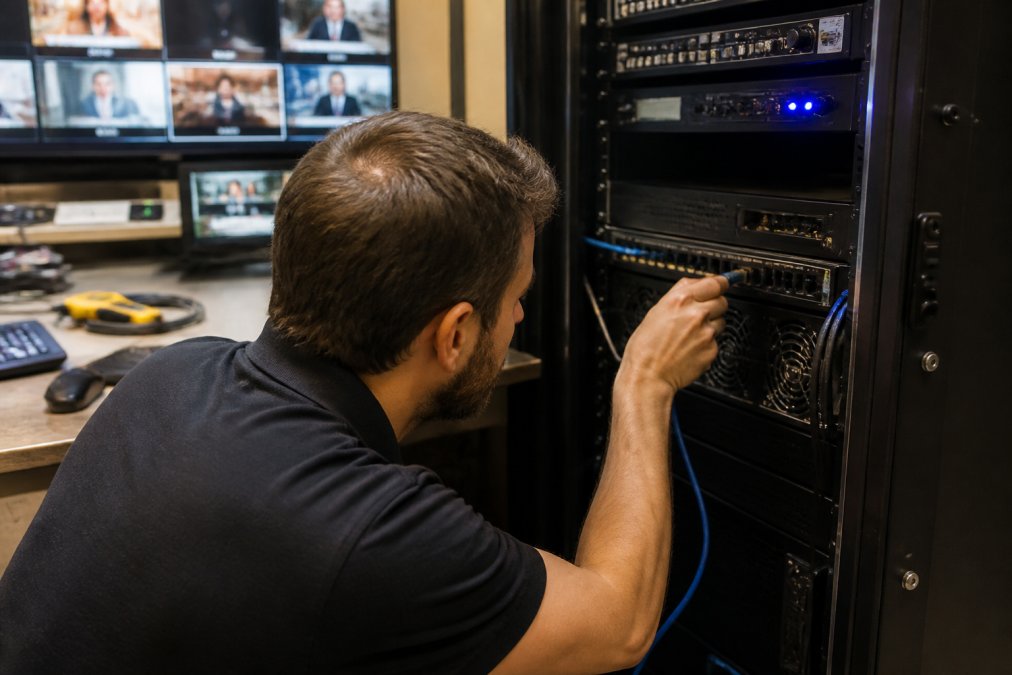
A technician plugging an ethernet cable into a router in a professional AV equipment rack, with streaming monitors visible in the background.
Wired vs. Wi-Fi: Why Ethernet Wins Every Time
Wi-Fi introduces three problems that a wired ethernet connection eliminates entirely: interference from other devices on the same frequency band, variable signal strength as people and objects move through the space, and shared medium contention when multiple devices compete for bandwidth simultaneously.
A wired ethernet connection provides a dedicated, consistent path for your upload traffic. For any broadcast where stream health is non-negotiable, Wi-Fi is not an acceptable primary connection. According to Cisco’s networking reliability guidance, wired connections consistently outperform wireless for latency-sensitive applications.
The practical steps:
- Connect the encoding machine directly to the router or switch with a Cat6 or Cat6a cable
- Disable Wi-Fi on the encoding machine entirely to prevent the OS from switching interfaces
- Confirm the ethernet link is running at gigabit speed, not 100Mbps, by checking the network adapter settings
- Test upload speed from the encoding machine specifically, not a separate device on the same network
ISP-Level Troubleshooting for Persistent Packet Loss
If packet loss persists on a wired connection, the problem is upstream of your router. Run a continuous ping test to your RTMP ingest server’s IP address over 10 minutes. Consistent loss above 1% that appears in the ping results, not just in your streaming software, points to an ISP routing issue.
The next step is a traceroute to the ingest server. This identifies which network hop is dropping packets. If the loss begins at a hop outside your local network, contact your ISP with the traceroute output. Many ISPs can reroute traffic or escalate the issue to their upstream provider.
For events in regional areas where ISP infrastructure is less redundant, this diagnostic step is especially important. Document the traceroute results before and during your event window.
Never rely on a speed test alone to diagnose packet loss. Speed tests measure throughput under ideal conditions. A connection can pass a speed test and still drop 3% of packets during sustained upload, which is enough to destabilise any live stream.
Best Bitrate Settings for Stable Streaming
The most reliable bitrate setting is not the highest your connection can theoretically handle. It is the highest bitrate your connection can sustain consistently, under load, with headroom to spare.
Matching Bitrate to Your Upload Speed
A practical rule used by professional broadcast engineers is to set your total stream bitrate, video plus audio, to no more than 70% of your confirmed upload speed. If your upload speed tests at 10 Mbps, your maximum safe bitrate is 7 Mbps. This headroom absorbs network congestion spikes without triggering a disconnect.
| Upload Speed | Max Safe Bitrate | Recommended Video Bitrate | Suitable Resolution |
|---|---|---|---|
| 5 Mbps | 3.5 Mbps | 3 Mbps | 720p at 30fps |
| 10 Mbps | 7 Mbps | 6 Mbps | 1080p at 30fps |
| 20 Mbps | 14 Mbps | 12 Mbps | 1080p at 60fps |
| 50 Mbps | 35 Mbps | 30 Mbps | 4K at 30fps |
Audio bitrate should be set to 128 kbps for stereo as a baseline. Increasing it beyond 192 kbps for a live stream produces diminishing returns while consuming bandwidth that video encoding needs.
Frame Rate, Resolution and Hardware Acceleration
Frame rate and resolution are multipliers on your bitrate requirement. Doubling the frame rate from 30fps to 60fps increases the data load by roughly 50% for the same perceived quality. For most corporate and educational streams, 1080p at 30fps is the correct balance of quality and stability.
Hardware acceleration offloads video encoding from the CPU to a dedicated GPU or hardware encoder. This matters because a CPU under encoding load is more likely to drop frames when other processes compete for resources. Enable hardware acceleration in your streaming software if a compatible GPU is present. As documented in OBS Project’s encoding guidance, hardware encoders like NVENC and AMD VCE significantly reduce CPU load compared to software encoding.
Redundancy Setups to Prevent Live Stream Drop-Offs
Redundancy is the professional standard for any broadcast where failure is not acceptable. A single-path stream, one encoder, one connection, one ingest server, is a single point of failure. Redundancy means that any one component can fail without the broadcast going down.
Backup Internet Connections and Bonded 4G/5G
The most common redundancy setup pairs a primary wired connection with a secondary mobile broadband connection on a different network. If the primary connection fails, the secondary takes over. The key requirement is that the two connections must use different physical paths, different ISPs or different technologies, so a single point of failure cannot take both down simultaneously.
Bonded 4G/5G solutions go further by combining multiple mobile connections into a single higher-bandwidth pipe. According to ACMA’s guidance on network resilience for broadcast services, maintaining transmission continuity is a core requirement for professional broadcast operations. Bonded connections are now standard practice for outside broadcast units and high-stakes corporate events.
For events in locations with variable connectivity, a bonded cellular solution is often more reliable than a single fibre connection because it aggregates multiple independent paths.
Hardware vs. Software Streaming Solutions
Software-based streaming runs on a general-purpose computer and shares resources with the operating system and other applications. Hardware encoders are dedicated devices with fixed processing resources, no competing processes, and purpose-built firmware.
The practical difference is reliability under sustained load. A software encoder on a laptop may perform well in testing and then drop frames two hours into a live event when thermal throttling or a background process intervenes. A hardware encoder does not have these variables.
For critical broadcasts, hardware encoders are the professional recommendation. Software solutions are appropriate for lower-stakes streams or situations where portability and flexibility outweigh the need for maximum stability.
Post-Drop Recovery: What to Do When a Stream Goes Down
A stream going down is not the end of the event. How quickly and cleanly you recover determines whether your audience stays or leaves.
The recovery workflow should be defined before the event starts, not improvised during it:
- Identify the failure type within 30 seconds. Is the encoder still running? Is the internet connection active? Check stream health indicators on the broadcast dashboard first.
- Attempt an automatic reconnect. If disconnect protection is configured correctly, the encoder will attempt to reconnect to the RTMP ingest server automatically. Do not restart the encoder immediately; let the reconnect window run.
- Switch to the backup encoder or connection if the primary reconnect fails after 60 seconds. This is where a pre-configured failover path saves the broadcast.
- Communicate with your audience. A holding slide or a brief message acknowledging the interruption keeps viewers engaged and prevents them from abandoning the stream.
- Document the failure point. Note the time, the error message, and the network conditions. This information is essential for diagnosing the root cause after the event.
What most guides miss is the importance of a pre-event run-through of this exact sequence. Teams that rehearse their recovery workflow respond in under two minutes. Teams that improvise take five or more, by which point many viewers have left.
The fastest recovery from a stream drop is the one your team has already practised. Build a one-page recovery checklist and keep it at the broadcast position during every event.
Mobile vs. Desktop Streaming Stability
Mobile streaming introduces constraints that desktop setups do not face. The encoder is sharing processing resources with the operating system, other apps, and cellular radio management simultaneously. Thermal throttling on mobile devices is a real and underappreciated cause of frame drops during extended broadcasts.
The connection stability gap between mobile and desktop is significant. A desktop encoder on a wired connection has a predictable, consistent upload path. A mobile encoder on 5G is subject to signal variation as the device moves, network handoffs between towers, and congestion on shared cellular infrastructure.
For professional events, mobile streaming is best treated as a backup or secondary stream, not the primary broadcast path. The exception is bonded cellular solutions using dedicated hardware, which provide the redundancy and bandwidth management that a single mobile device cannot.
Desktop setups also offer more granular control over encoder settings, bitrate management, and stream health monitoring. The stream dashboard on a desktop gives operators real-time visibility into latency, frame drops, and buffer health that mobile apps typically do not expose.
For organisations managing events across multiple sites with varying connectivity, professional managed streaming services with fail-safe procedures built into every broadcast are available. This means professional-grade redundancy, hardware encoding, and real-time monitoring without requiring your internal IT team to manage the technical complexity.
As noted in AIBC’s guidance on virtual event technical standards, professional managed streaming services are increasingly the standard for corporate events where reliability and security are non-negotiable requirements.
Frequently Asked Questions
What causes live stream disconnects during a broadcast?
Live stream disconnects most commonly result from insufficient upload speed, high packet loss, network congestion, or misconfigured encoder settings. A bitrate set too high for your available bandwidth forces the encoder to drop frames or lose connection to the ingest server entirely. Wi-Fi interference, ISP throttling, and faulty cables also contribute. Running a pre-event network test and using a wired ethernet connection eliminates most of these causes before your broadcast begins.
How do I enable disconnect protection on streaming platforms?
Disconnect protection settings are typically found in your streaming software's output or stream settings panel. Enable 'reconnect on disconnect' and set a reconnect delay of 5-10 seconds with at least 10 retry attempts. Pair this with auto-start and auto-end rules so your broadcast resumes automatically without manual intervention. For managed professional events, your streaming provider should configure and monitor these settings on your behalf, removing the burden from your internal team.
Does internet speed affect live stream stability?
Yes, upload speed is the single biggest factor in live stream stability. As a general rule, your encoder's target bitrate should not exceed 70-80% of your sustained upload speed to leave headroom for network fluctuation. For HD streaming at 1080p, you typically need at least 8-10 Mbps of stable upload. Latency and jitter matter as much as raw speed, a connection with 50 Mbps upload but high jitter will drop frames more often than a steady 15 Mbps connection.
How can I monitor my stream health in real-time during a live event?
Most professional streaming software and managed platforms provide a stream dashboard showing bitrate, frame drops, packet loss percentage, and latency in real time. Set alerts for when dropped frames exceed 1-2% or bitrate falls below your target threshold. For large corporate events or AGMs, a dedicated technical operator monitoring the stream dashboard throughout the broadcast is the most reliable way to catch and respond to issues before your audience notices any degradation.
Stream reliability is the single most important factor separating a professional broadcast from one that damages your organisation’s reputation. Webcasting Livestream provides end-to-end managed live streaming with a no-drop-off guarantee, HD quality across all devices, and fail-safe procedures that cover every layer of the broadcast chain. Get a quote from Webcasting Livestream and deliver your next event without a single frame of doubt.
This article was written using GrandRanker