
Table of Contents
- Step 1: Calculate Your Bandwidth Requirements
- Step 2: How to Test Internet Speed for Streaming
- Step 3: Choose Temporary Internet Solutions for Events
- Step 4: Build Redundancy with Bonded Multi-Carrier Connectivity
- Step 5: Reduce Latency, Jitter, and Packet Loss
- Step 6: DIY vs. Professional Managed Services for Stable Internet
- Step 7: Troubleshooting Mid-Event Outages and Compliance
- Frequently Asked Questions
Last Updated: September 10, 2026
Step 1: Calculate Your Bandwidth Requirements
The single biggest cause of a failed live stream is under-provisioned bandwidth, and it is almost always calculated wrong. To ensure stable internet for live events, start with your upload speed, not your download speed, because streaming is an outbound task. As a working rule, budget 1.5 times your target streaming bitrate to leave headroom for encoding overhead and network variance.
Work through this before you book anything else:
- Single HD stream (1080p): 5-8 Mbps upload
- Multi-camera production: add 5-8 Mbps per additional feed
- Return feed or backup path: reserve a separate link entirely
- Venue overhead: add 20-30% for shared devices, VoIP, and POS systems
A common mistake is treating download figures as proof of capacity. An ACCC broadband performance guidance confirms upload speeds vary far more than download across connection types, so always test the direction that matters.
If you size bandwidth to the exact bitrate, packet loss and jitter will push you over the limit mid-event. The consequence is a buffering audience and dropped frames you cannot recover.
Step 2: How to Test Internet Speed for Streaming
Testing internet speed for streaming means measuring sustained upload throughput over time, not a single five-second reading. A one-off speed test tells you the best case; streaming needs the worst case.
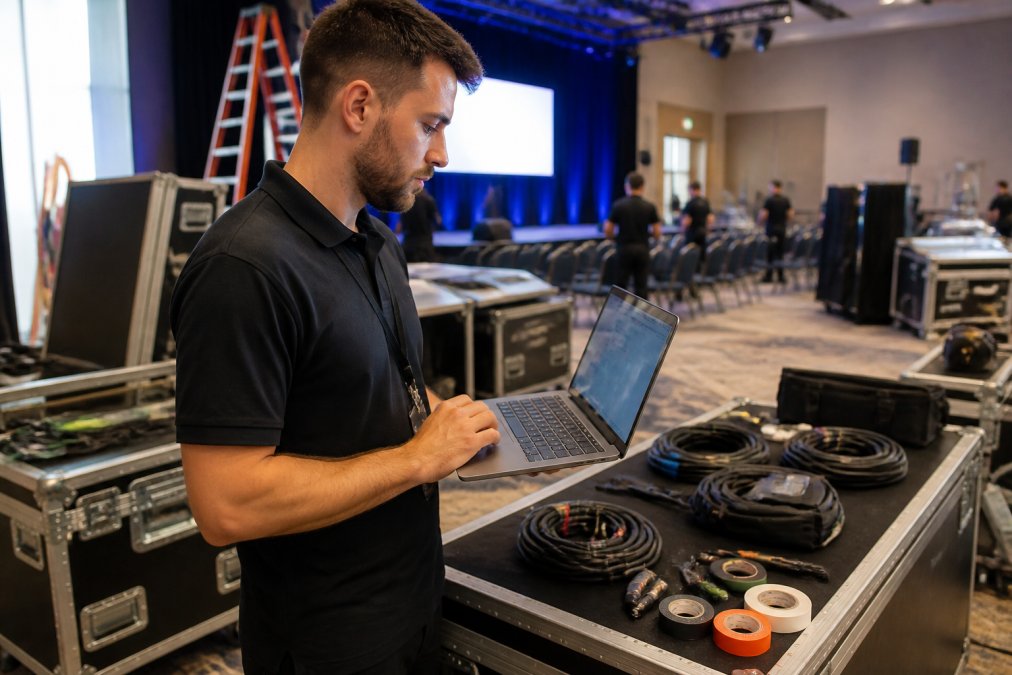
Conducting a Site Survey and Speed Test
A site survey is a physical walk-through of the venue to map signal strength, cabling routes, and interference sources. Do it at the same time of day as the event, because a venue’s network behaves differently under load.
Run these checks during your survey:
- Test upload speed from the exact broadcast position, not the foyer
- Repeat the test every 30 minutes for at least two hours
- Log latency, jitter, and packet loss alongside raw speed
- Identify every competing device on the network
- Photograph cable runs and power points for your production plan
The venue’s own Wi-Fi is the weakest link in most temporary setups. A ACMA guidance on radiocommunications is worth reviewing if you plan to bring your own transmitters or bonded hardware into a public space.
Step 3: Choose Temporary Internet Solutions for Events
Temporary internet solutions for events fall into three practical categories: dedicated wired connections, bonded cellular, and venue-supplied Wi-Fi. The right choice depends on how much you can control.
| Solution | Typical Use | Control Level | Best For |
|---|---|---|---|
| Dedicated wired | Fixed venue, single site | High | Conferences, AGMs |
| Bonded cellular | Multi-site, regional | Medium | Outdoor, touring events |
| Venue Wi-Fi | Low-budget, small events | Low | Casual webinars |
Dedicated Connections vs. Shared Venue Wi-Fi
Dedicated bandwidth gives you a private circuit that no other tenant shares. Shared venue Wi-Fi splits one uplink across every exhibitor, guest, and staff device in the building. For anything with a paying audience, dedicated wins, and it is not close.
Ask the venue for a written commitment on minimum guaranteed upload, not “up to” figures. If they cannot provide one, plan for a bonded cellular backup from day one.
Step 4: Build Redundancy with Bonded Multi-Carrier Connectivity
Bonded connectivity combines multiple uplinks from different carriers into one logical connection, so no single provider outage takes you off air. Multi-carrier bonding is the standard approach for redundancy in event production.
Configure your bonded router so that:
- Each SIM uses a different carrier to avoid shared tower failures
- Failover triggers automatically on packet loss, not just total disconnection
- Load balancing distributes the stream across active links
- Real-time monitoring alerts you before a link degrades
Hardware redundancy matters too. Keep a spare router, pre-configured SIMs, and spare antennas on site. If you are coming from a single-hotspot setup, expect the bonding configuration to take a full afternoon to test properly. managed IT services.
Step 5: Reduce Latency, Jitter, and Packet Loss
Latency, jitter, and packet loss are the three metrics that decide whether your stream holds. Latency is delay; jitter is variation in that delay; packet loss is data that never arrives. Streaming tolerates moderate latency far better than it tolerates jitter.
To reduce all three:
- Prioritise your encoder’s traffic with QoS rules on the router
- Use wired connections wherever a cable can reach
- Keep the encoder close to the uplink to shorten the path
- Avoid congested public Wi-Fi bands entirely
A Cisco networking documentation on QoS explains how quality-of-service rules prioritise real-time traffic over bulk downloads, which is exactly the protection a live stream needs.
Step 6: DIY vs. Professional Managed Services for Stable Internet
Most guides on this topic are written by someone selling one of the two options. This section is deliberately neutral: the right answer depends on what a dropped stream actually costs you, and that number is different for every event.
The real cost of a DIY build
A DIY approach is not free, it is deferred cost. When you build your own stable connection, you are paying in:
- Hardware: a bonded router, multiple SIMs or modems, antennas, cabling, a spare encoder, and a UPS. This is a capital cost you carry between events.
- Data plans: multi-carrier SIM plans with enough upload allowance for a full broadcast day. Watch for fair-use clauses that throttle after a threshold.
- Labour: the site survey, the afternoon of bonding configuration, the on-site testing, and the person who stays glued to a monitoring dashboard during the event.
- Risk: if it fails, you own the failure publicly.
A common pattern is that the first DIY event feels cheap and the third one does not, because the hidden labour compounds while the hardware cost does not.
What a managed service actually provides
A professional managed service is not just ‘someone else’s router’. A credible provider typically bundles:
- A pre-surveyed venue assessment and a written minimum-upload commitment
- Bonded multi-carrier connectivity with automatic failover
- On-site or on-call engineers for the duration of the broadcast
- Real-time monitoring with defined escalation thresholds
- A service-level agreement (SLA) that states what happens if the link degrades
Ask any provider for the SLA in writing before you compare quotes. A managed service without a defined remedy for failure is just a rental.
A simple decision framework
Work through these questions in order:
- Is there a paying or public audience? If yes, lean managed. The reputational cost of a visible failure usually exceeds the service fee.
- Is there a legal or governance obligation to broadcast? An AGM, a statutory meeting, or a regulated disclosure raises the stakes further.
- Do you broadcast more than a few times a year? Frequent events amortise the hardware and skills investment, which shifts the maths toward DIY.
- Do you have a named person whose only job on event day is the connection? If not, you do not have a DIY plan, you have a hope.
- Can the venue give you a written guaranteed upload figure? If not, budget for bonded cellular regardless of which route you choose.
A hybrid model works well for many organisers: build a DIY bonded kit for routine internal broadcasts, and hire a managed provider only for flagship events. You keep the hardware, and you buy the guarantee when it matters.
Where the two options overlap
Both routes depend on the same fundamentals: a real site survey, tested upload throughput, multi-carrier redundancy, and QoS on the router. A managed service does not remove those requirements, it removes the burden of executing them under pressure. If you cannot describe your failover behaviour in one sentence, you are not ready to go live on either model.
Step 7: Troubleshooting Mid-Event Outages and Compliance
This section covers the two things organisers most often get wrong under pressure: what to actually do when the stream drops, and what you are legally responsible for when you run a public network. Neither is glamorous, and both are where events fail.
A mid-event outage checklist, in priority order
When a stream drops, the instinct is to panic-restart everything. Do not. Work top-down, and give each step a fixed time budget so you do not lose the whole event to one check.
- Confirm the encoder is still encoding (30 seconds). If the encoder has stopped, the network is not your problem. Restart the encoder first.
- Check the bonded router for a failed uplink (30 seconds). Most routers show per-SIM status. A single dead carrier should trigger automatic failover, if it has not, switch manually.
- Reduce streaming bitrate by 20% (1 minute). Lowering the bitrate stabilises throughput on a degraded link and is faster than diagnosing the cause live.
- Verify the platform ingest server status (1 minute). Occasionally the fault is upstream, not local. Check the platform’s status page before you tear down your own setup.
- Switch to the backup carrier or backup path (2 minutes). If you provisioned a separate backup link, this is the moment to use it.
- Communicate to the audience (immediately, in parallel). A holding slide or a spoken update buys you time and protects trust. Silence is worse than a delay.
Do not reboot the router as a first response. A reboot drops every active link and can take several minutes to re-establish bonding. It is a last resort, not a first step.
Preventing the outage you cannot fix live
The checklist above is damage control. The real work happens before the event:
- Run a full dress rehearsal at the same time of day as the live event, with the same encoder and bitrate.
- Test failover deliberately by unplugging one carrier and confirming the stream holds.
- Keep a printed copy of the checklist and the provider’s support number at the broadcast position, not in an email.
- Assign one person to monitoring and one person to the stream, so troubleshooting does not pull the operator away from the production.
Compliance for public event Wi-Fi
If you provide Wi-Fi to attendees, you are handling their data and you carry obligations under the Privacy Act 1988 and the Australian Privacy Principles. In practice, that means:
- Tell people what you collect and why. A short privacy notice at the point of connection is the minimum.
- Do not collect more than you need. Captive-portal email harvesting is common but must be justified and disclosed.
- Secure the network. An open, unencrypted network exposes attendees and exposes you to liability if their traffic is intercepted.
- Separate production traffic from attendee traffic. Your broadcast should never share a VLAN with public Wi-Fi.
For sensitive internal broadcasts, board meetings, legal proceedings, anything commercially confidential, do not use public Wi-Fi at all. Use a private network and confirm your platform’s access controls, recording settings, and retention policy before you go live.
Stable internet is a technical problem with a legal edge. The organisers who get it right treat the connection and the compliance obligations as one plan, not two.
Frequently Asked Questions
What is the minimum upload speed for live streaming?
The minimum upload speed for live streaming depends on your video quality. For standard definition, aim for at least 3-5 Mbps. For high-definition 1080p streaming, you need a minimum of 10-15 Mbps. However, to ensure stable internet and allow for fluctuations, always provision at least double the required streaming bitrate. For 4K broadcasts, aim for 25-35 Mbps upload speed. Remember that upload speed is only one factor; latency, jitter, and packet loss also affect stream stability.
How do I test my internet stability before a live broadcast?
To test internet stability for streaming, run multiple speed tests at the venue during the same time of day as your event. Use tools like Ookla or Fast.com to check upload speed, download speed, and ping. For a more thorough test, use a continuous ping test to a reliable server for 30 minutes to check for packet loss and jitter. If you are using a temporary internet solution for events, ask your provider for a site survey. This identifies dead zones and tests throughput under load.
Why is a dedicated internet connection better than public Wi-Fi for events?
A dedicated internet connection provides exclusive bandwidth for your broadcast, while public Wi-Fi is shared with hundreds of attendees. When everyone connects to public Wi-Fi, network congestion causes packet loss, jitter, and buffering. A dedicated line or bonded cellular solution ensures stable internet for live events by prioritising your upload traffic. This is critical for HD streaming, as even brief drops in throughput can cause connection drops and ruin the viewing experience for remote audiences.
What backup internet solutions are recommended for professional webcasting?
For professional webcasting, redundancy is essential. Use a bonded multi-carrier router that combines multiple cellular connections from different ISPs. This provides failover if one carrier drops. Alternatively, use a primary wired connection with a cellular failover. Hardware redundancy, such as dual routers and backup power, also helps. A managed service provider can monitor the connection in real time and switch to backup automatically, ensuring stable internet for live events without interruption.
Live events do not forgive technical gaps. The difference between a flawless broadcast and a public failure usually comes down to planning, redundancy, and having someone accountable when a link drops. Webcasting Livestream builds stable internet for live events around fail-safe procedures, a no-drop-off guarantee, and HD quality streaming across all devices, with every recording provided to you at no extra cost. Get started with Webcasting Livestream and broadcast with confidence.